
Handling one WordPress project is manageable. Handling five, ten, or twenty at the same time is where things become complicated. Agencies, freelancers, and in-house marketing teams often deal with scattered templates, repeated design work, delayed approvals, and miscommunication between designers, developers, and content teams. As client demands grow, the lack of a centralized system turns simple tasks into time-consuming back-and-forth.
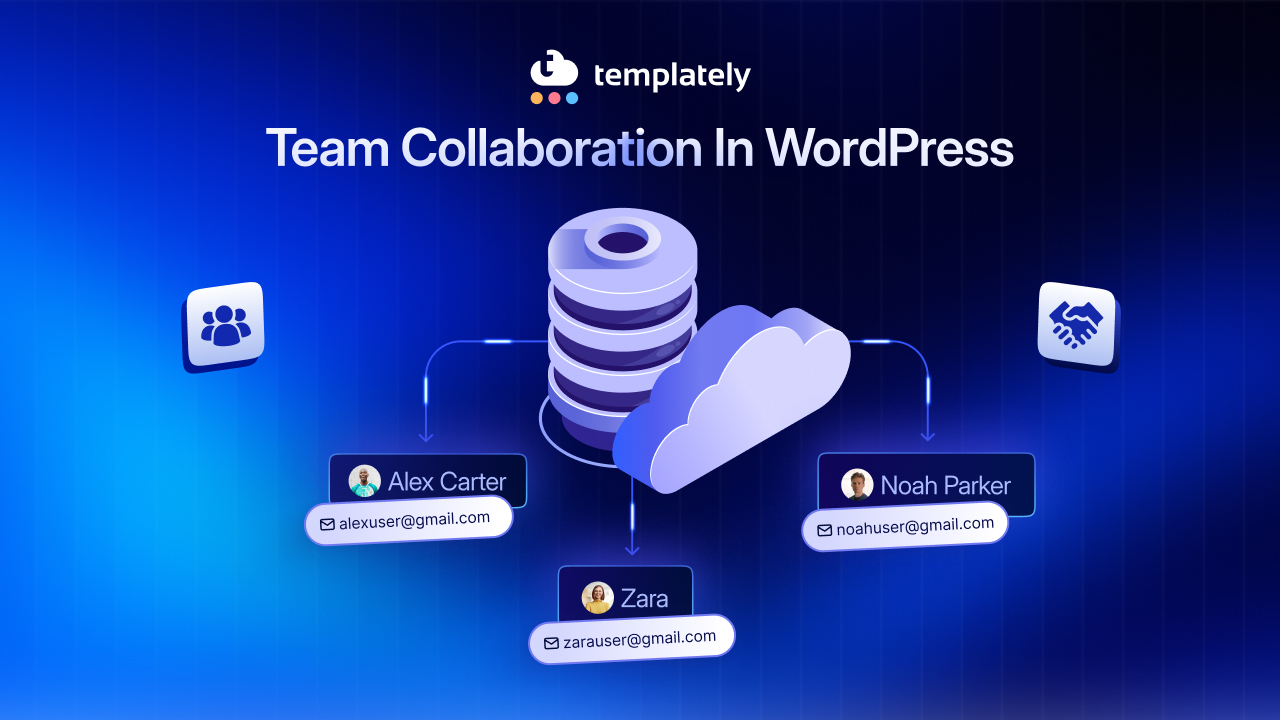
This is why collaboration in WordPress needs a more structured approach. Teams no longer just need page builders and templates; they need a reliable way to organize assets, separate projects, and let multiple stakeholders work together without confusion. That is where a shared cloud-based workspace becomes valuable, and tools like Templately’s My Workspace offer a practical way to simplify that process.
Why Team Collaboration in WordPress Becomes Difficult?
As your client roster expands, every project brings its own brand files, landing pages, headers, footers, reusable blocks and revision requests. Without a system for organizing those resources, teams start depending on folders, chat threads, screenshots and manual exports. That may work for a while, but it becomes harder to maintain when several people are involved in several sites at once.

The real problem is not only volume. It is a fact that WordPress collaboration often happens across disconnected tools. Designers may save one version of a page, developers may work from another and project managers may not know which assets are final. Over time, this slows down delivery and makes client work more error-prone.
Project Files Scattered Across Different Locations
One of the biggest obstacles to team collaboration in WordPress is asset sprawl. Some templates are stored locally, some in cloud folders and others remain buried inside individual site dashboards. When team members need to locate the latest version of a landing page or a reusable section, they waste time searching instead of building.
This scattered structure also creates uncertainty. A file might exist in three places, but nobody is fully sure which one is approved. That uncertainty increases the risk of using outdated designs, publishing the wrong version, or recreating something that already exists.
Designers And Developers Working in Silos
When there is no central collaboration feature connecting team members, each role tends to operate in isolation. Designers create layouts, developers rebuild or adjust them and content teams enter text later. Instead of improving efficiency, the workflow becomes layered with duplicated effort.
Silos also reduce visibility. A developer may not know that a designer has already prepared a reusable section and a designer may not realize a page has already been updated for a specific client site. Without shared access, people work harder than necessary.
Difficulty Maintaining Client-Specific Assets
Every client has unique brand rules, messaging, design preferences and conversion goals. If assets for multiple clients are stored together without clear separation, the chances of mixing them up increase. A block designed for one client can easily end up reused for another without the right copy, style, or branding.
That kind of mistake is not just inconvenient. It can harm trust and make teams look disorganized. Client separation is essential when managing multiple websites, especially for agencies juggling several retainers or ongoing campaigns.
Sharing Reusable Designs without Creating Duplicates
Reusable assets should save time, but in messy workflows, they often create more duplication. Teams export templates, reimport them into another environment, rename them slightly and then repeat the same process later. Before long, there are several versions of the same design floating around.
This makes asset reuse difficult to scale. Instead of having a clean library of approved templates, teams accumulate copies that are hard to track. Good collaboration in WordPress should make reuse easier, not more confusing.
What Is a Workspace in Web Design?
A workspace in web design is a dedicated environment where project-related assets can be grouped, accessed and shared by the right people. Rather than storing everything in one mixed repository, teams can create structured spaces for individual clients, campaigns, or internal brands. This gives everyone a clearer view of what belongs where.
In practice, a workspace acts like an operational hub. It helps teams organize templates, keep reusable items accessible and reduce the friction that comes from switching between tools and locations. For agencies and growing digital teams, a workspace in web design is less about storage and more about workflow clarity.
Why Dedicated Workspaces Improve Web Design Collaboration
Dedicated workspaces improve web design collaboration because they bring order to the production process. When each client or project has its own environment, teams can work faster without constantly filtering through unrelated assets. Everyone knows where to go, what to use, and what belongs to whom.
They also improve accountability and onboarding. New team members can understand a project faster when resources are grouped logically. Instead of asking where the latest hero section or page layout is saved, they can access a shared system and start contributing with minimal confusion. That structure becomes even more valuable as teams scale.
Common Team Collaboration Challenges (And How Workspaces Solve Them)
Most collaboration issues in WordPress are not caused by a lack of skill. They are caused by poor asset organization, inconsistent access and weak processes around reuse. A dedicated workspace solves these problems by creating a shared operational layer between team members and project assets.
Here is how common problems compare with a workspace-based workflow:
| Challenge | Without Dedicated Workspaces | With Dedicated Workspaces |
| Client asset separation | Files from different projects get mixed | Each client can have a separate environment |
| Template sharing | Manual export/import is required | Shared assets can be accessed more directly |
| Team visibility | Designers, developers, and marketers work separately | Teams can collaborate from a common space |
| Version control | Duplicate templates pile up over time | Organized storage reduces confusion |
| Asset reuse | Good designs are hard to locate later | Reusable items are easier to find and apply |
| Onboarding | New members need constant guidance | The project structure is easier to understand quickly |
A workspace does not remove every operational challenge overnight. But it gives teams a foundation for consistency, which is often what fast-growing WordPress operations are missing.
Meet Templately My Workspace: The Smarter Way to Collaborate in WordPress
Templately’s My Workspace is built to make shared work inside WordPress more practical. Users can create a Workspace, invite members by email, save templates to MyCloud and add those saved assets into a shared environment where teammates can access them. For teams managing several websites, this adds structure without forcing a complicated project management process on top of design work.
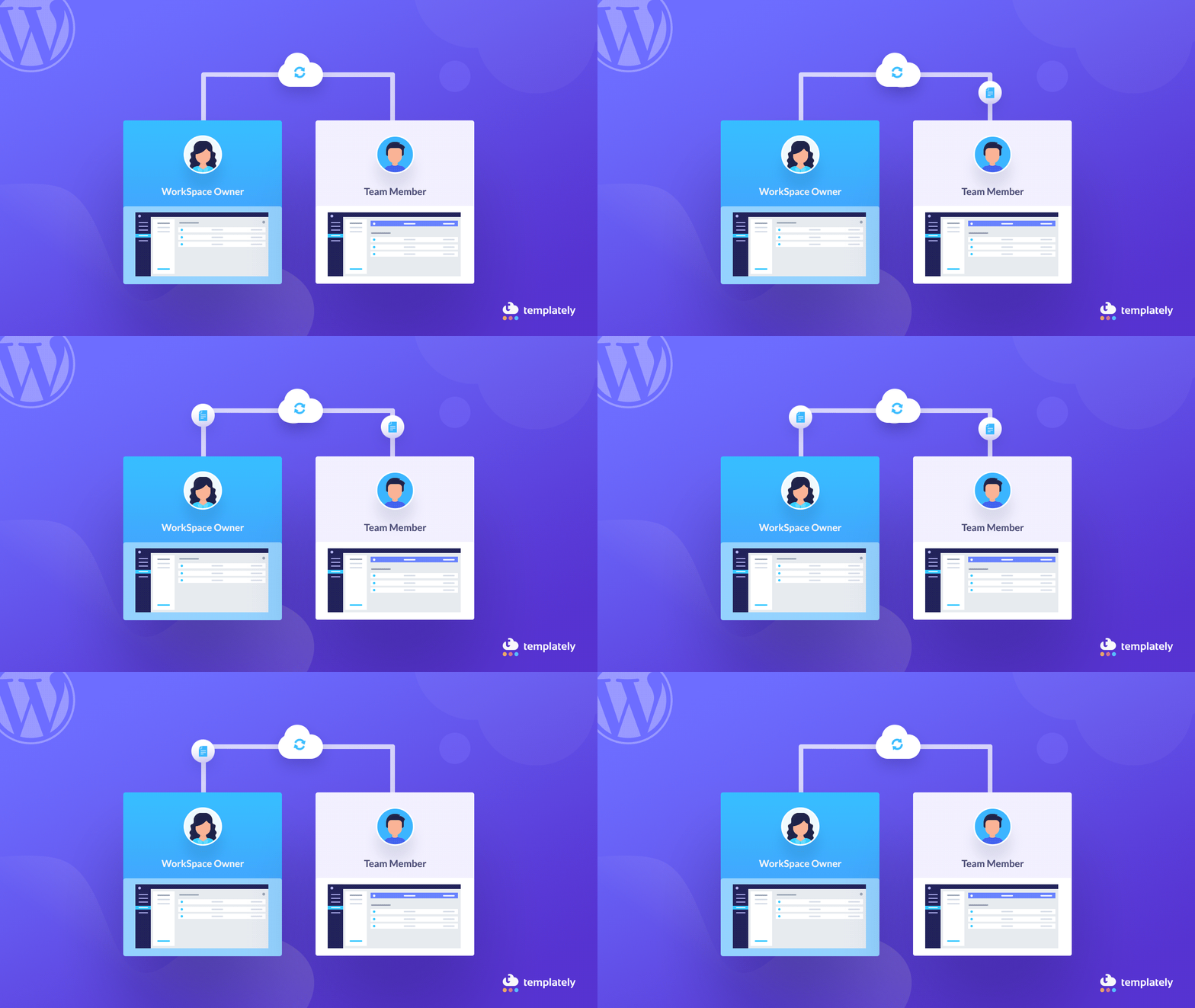
What makes it useful is that it supports the kind of asset flow WordPress teams already depend on: reusable pages, sections, saved designs, and collaboration across multiple stakeholders. Instead of treating each site as an isolated build, My WorkSpace supports a more connected workflow.
Create Separate Workspaces for Every Client
A strong way to use My Workspace is to create a separate workspace for each client. Templately’s setup process allows users to add a new Workspace after signing in, which helps organize projects more cleanly from the start.
This separation matters because it keeps brand assets, page layouts and project-specific resources from getting mixed together. For an agency, that means one client’s homepage blocks, landing page sections, and internal drafts can stay fully distinct from another client’s assets.
Invite Your Entire Team
According to the documentation, users can invite team members to join a Workspace by adding their email addresses during setup. That makes the environment collaborative instead of personal, which is a major difference when multiple contributors are involved.
This is especially helpful for distributed teams. Designers can save and share assets, developers can access approved layouts, and project managers can oversee what has been prepared. The workflow feels less dependent on one person passing files around manually.
Organize Templates, Pages & Assets
Templately explains that templates can be saved to MyCloud and then added to a shared Workspace for team access. That means your landing pages, blocks, sections, and reusable design components can live in a more organized cloud-based structure.
For busy teams, this helps turn one-off work into reusable systems. A high-performing testimonial section, pricing layout, or service page design does not need to disappear after launch. It can remain available for future adaptation and collaboration.
Copy Items Between Workspaces in Seconds
One especially practical feature is the ability to copy an item from one Workspace to another. Templately’s documentation shows that users can do this from the Templately website or directly from the WordPress plugin by selecting an item, choosing “Copy To Workspace,” and selecting the destination workspace.
This is useful when a proven design needs to be reused across accounts without rebuilding it from scratch. For example, if one client’s FAQ layout performs well, your team can adapt that structure for another project while keeping client workspaces organized. It supports reuse without creating unnecessary friction.
Collaborate Without Exporting & Importing Files
Traditional template sharing often depends on downloading files, uploading them elsewhere, and hoping nothing breaks along the way. Templately’s WorkSpace model reduces that dependence by letting teams save assets to MyCloud and share them through a shared workspace instead.
That makes collaboration feel lighter. Instead of spending time packaging and transferring design files, teams can focus more on refining pages, aligning branding, and shipping client work faster.
To know more about My Workspace feature, check the documentation:
- How To Configure Templately Workspace
- How To Copy An Item From One Workspace to Another Workspace in Templately?
Practical Workflow: Managing Multiple Client Projects Using My Workspace
The best thing about a workspace-based system is that it can become part of your daily delivery process. Once the structure is in place, teams can manage projects more predictably and reduce repeated setup work. A practical workflow also makes handoffs between design, development, and content more efficient.
Here is a simple way to use My Workspace across multiple client projects.
Step 1: Create a Workspace for Each Client or Brand
Start by assigning each client a dedicated workspace. This creates clean boundaries from the beginning and helps avoid asset overlap. If your team also manages internal campaigns or product microsites, those can have separate workspaces as well.
Step 2: Invite Relevant Team Members
Not every project needs the same contributors. Once the workspace is created, invite the designers, developers, marketers, or managers who need access to that specific environment. This keeps collaboration focused and prevents unnecessary clutter.
Step 3: Save Core Templates to MyCloud
As your team builds layouts, save important templates and sections to MyCloud. These can include homepage blocks, lead-generation pages, about sections, headers, footers, product grids, or campaign modules that may be reused later.
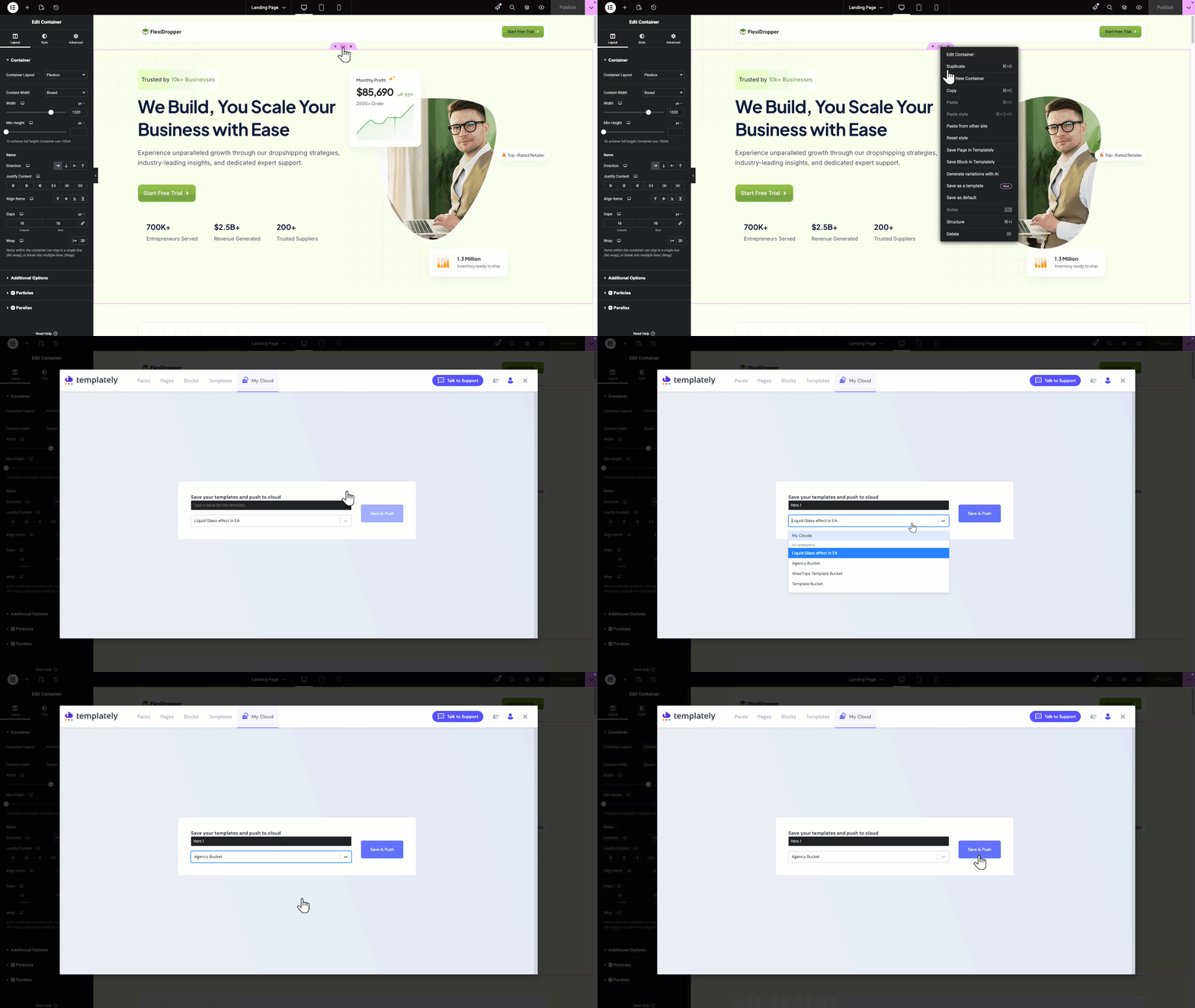
Step 4: Add Assets to the Appropriate Workspace
After saving assets, place them in the correct Workspace so everyone assigned to that project can access them. This step turns individual work into shared team resources and makes it easier to keep progress visible.
Step 5: Copy Winning Assets Across Projects when Needed
If your team creates a section that can be reused elsewhere, copy it into another workspace rather than rebuilding it. Templately documents this process through its “Copy To Workspace” option, which helps move useful items between workspaces efficiently.
Step 6: Deliver Faster with Less Duplicate Effort
Once your team operates from organized workspaces, delivery becomes smoother. Assets are easier to find, pages are easier to reuse, and fewer hours are spent on avoidable repetition. Over time, the workflow becomes more scalable.
Best Practices for Team Collaboration in WordPress
Even the best collaboration feature works better when paired with a strong process. Teams should create one workspace per client or campaign, use clear naming conventions and treat reusable design blocks as part of a structured library instead of one-off files. When saved assets are named consistently, teammates can find and reuse them much faster.
It also helps to archive outdated materials, document preferred versions, and centralize brand-specific components in the correct workspace. The goal is not simply to store more assets in the cloud. The goal is to make the right assets easier to use at the right time.
Why Cloud Collaboration Is the Future of WordPress Teams
WordPress teams are no longer working from a single office with fixed roles and static timelines. Many now operate remotely, across regions, and across multiple brands or clients at once. In that kind of environment, local-only workflows and scattered files become harder to justify.
Cloud-based systems are becoming the natural direction because they support access, speed, and reuse. Instead of relying on manual transfers, teams can work from shared environments that support ongoing production. As agencies and digital teams continue to scale, cloud collaboration will become less of a bonus and more of a baseline expectation.
Simplify Team Collaboration in WordPress Today
As projects multiply, the cracks in an unstructured workflow become impossible to ignore. Scattered files, siloed teams, duplicate designs, and mixed client assets all slow down delivery and create unnecessary stress. That is why collaboration in WordPress needs more than good intentions. It needs a system.
A dedicated workspace model gives teams that system. And for freelancers, agencies, and in-house teams already building in WordPress, Templately My Workspace offers a subtle but effective way to bring order to collaboration, organize project assets, and reuse work more intelligently. If your team is looking for a cleaner way to manage multiple client projects, it is worth trying My Workspace as part of your WordPress workflow.
Was this blog helpful? Let us know in our growing Facebook Community. You can also subscribe to our YouTube channel for the latest tutorials and updates.