

Most page edits are small. A heading that needs a friendlier tone, a button that should match the new brand color, an FAQ section that belongs at the bottom instead of the middle. Yet each of these still means opening the page builder, hunting for the right widget, digging through style tabs and checking the result on every device. With Templately AI Editor, you can now edit WordPress pages with AI by simply describing the change you want, right inside Elementor or the WordPress block editor.
In this blog, we will walk you through what Templately AI Editor is, why it saves real time for freelancers, agencies, store owners and marketers, and how you can start using it in a few simple steps. You will also learn how to claim 50 free AI credits so you can try it on your own pages without paying anything upfront.
What Is Templately AI Editor?
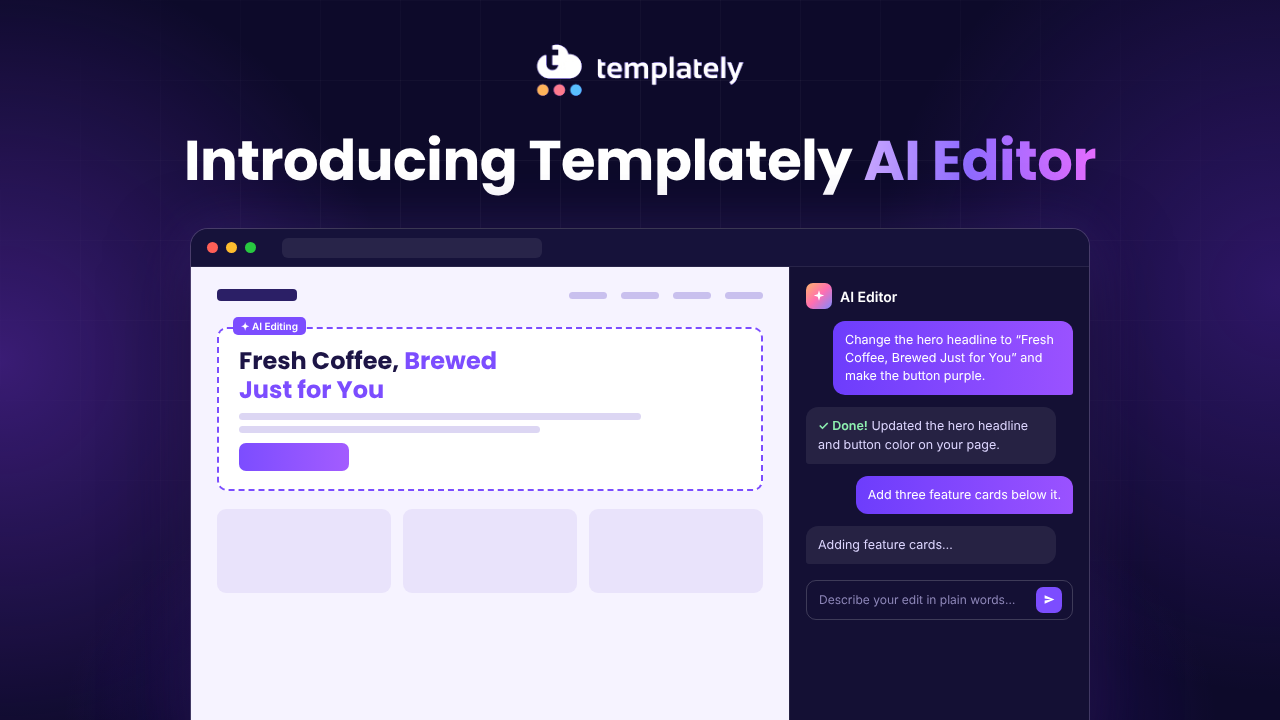
Templately AI Editor is a chat panel that sits right next to your page inside the editor. Instead of clicking through widget settings, you type a request in plain words, such as “make the button purple with rounded corners”, and the AI makes that change on your page. Every edit appears on the canvas first, so you can see exactly what changed before anything goes live. You can then keep it, ask for a small tweak, or undo it with a single shortcut. It comes with the free Templately plugin and works with both Gutenberg and Elementor, on pages as well as posts.
Here is a quick look at the kinds of changes you can ask for:
| What You Can Ask For | Example Request |
|---|---|
| Rewrite any text | Rewrite the heading to sound friendlier |
| Change how it looks | Make the button purple with rounded corners |
| Move things around | Move the FAQ section to the bottom |
| Add new sections | Add a pricing section below the features |
Why Page Editing Still Slows Down WordPress Users
Page builders made WordPress design visual, but they did not make it fast for every task. A simple request from a client, like “can we make the hero text shorter and the button a bit bigger?”, can take several minutes of clicking between the content tab, the style tab and the responsive settings. Multiply that by dozens of revisions across several pages and a large part of your week goes into small edits instead of new work. For people who are not designers, the problem is bigger: they know what they want the page to look like, but they do not know which setting controls it.
Adding new content creates a different kind of delay. If you need a testimonials or pricing section, you either build it from scratch or browse a template library, insert the design, and then restyle it to match the rest of the page. Templately AI Editor removes much of this back-and-forth. You describe the result, the AI finds the right elements and settings, and you spend your time reviewing the outcome instead of searching for controls.
How Templately AI Editor Makes Page Editing Faster
Templately AI Editor is built around one idea: you should be able to say what you want and see it happen on the page. Below are the features that make that possible, and why each one matters in day-to-day work.
Edit in Plain Words, Not Settings Panels
You do not need to know which widget holds a piece of text or which tab controls border radius. Type “make the button #5632d1 with 12px rounded corners” and the AI applies those exact values. Type “rewrite the subheading so it speaks to small business owners” and it rewrites the copy in place. The panel shows its progress as it works, with messages like Reading the page… and Making the changes…, and then tells you what it changed.
This is especially useful for people who manage content but do not design pages every day. A marketer can adjust headlines and calls to action without asking a developer, and a site owner can update copy without learning every builder setting. If you want to start quickly, the panel also shows suggested requests you can click.
Point at the Exact Section or Element
On a long landing page, “change the heading” can mean many things. Templately AI Editor lets you be precise. Type @ in the chat box and pick a section from the list, or select any element on the page and choose Add to Templately AI context from its toolbar or right-click menu. The AI then focuses its edit on exactly that part of the page.
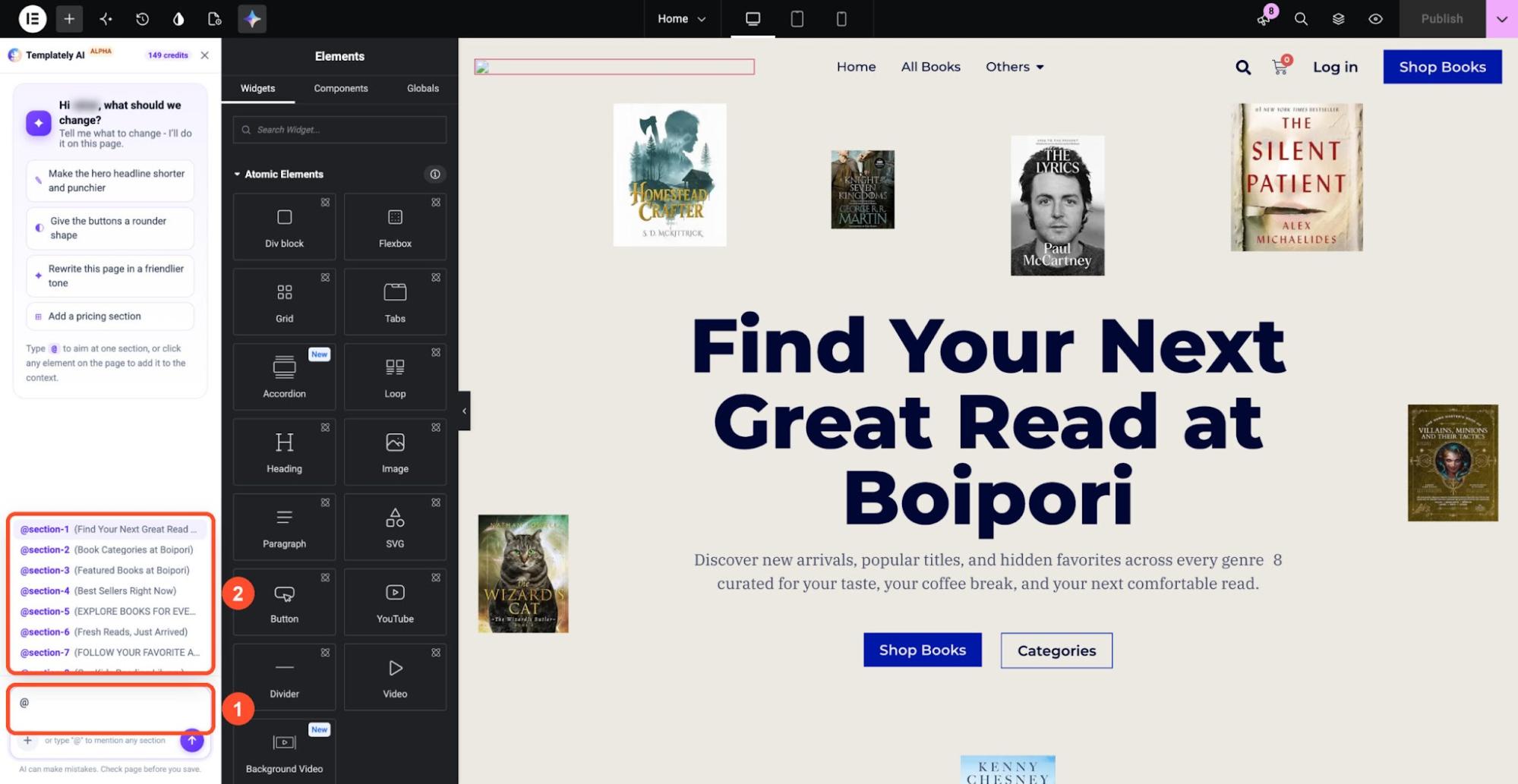
For example, on a SaaS homepage with three different call-to-action sections, you can tag only the final one and ask, “Change the button text to ‘Start Your Free Trial’ and make it larger.” The other buttons stay untouched, and you avoid unwanted changes elsewhere on the page.
Preview Every Change Before It Goes Live
Every edit appears on the canvas before anything is published. If you like the result, keep going with your next request, or fine-tune it with something like “a little smaller”. If you do not like it, press Ctrl+Z on Windows or ⌘+Z on Mac, or use the editor’s Undo button. Each request counts as one undo step, so you can roll back cleanly.
When you are happy with the page, click Save page in the panel or use your editor’s usual Save button. Until you save, your live site stays exactly as it was. This gives you the freedom to try different ideas on a page without risking what your visitors see.
Add Ready-Made Sections From the Templately Library
Templately AI Editor is connected to the Templately library of ready-made templates and blocks. Ask for a section by name, for example “Add a testimonials section below the hero”, and the panel shows matching designs. Click Preview to take a closer look, or Select to add it to your page. If a section needs a free plugin, it is installed for you before the section is added.
Pro sections need a Templately Pro plan; on the free plan, the panel shows an Upgrade subscription link instead. If a section depends on a premium plugin such as Essential Addons Pro, you will need to install that plugin yourself so the section displays in full. You can also learn more about inserting and using blocks from Templately in the documentation.
Works the Same in Elementor and Gutenberg
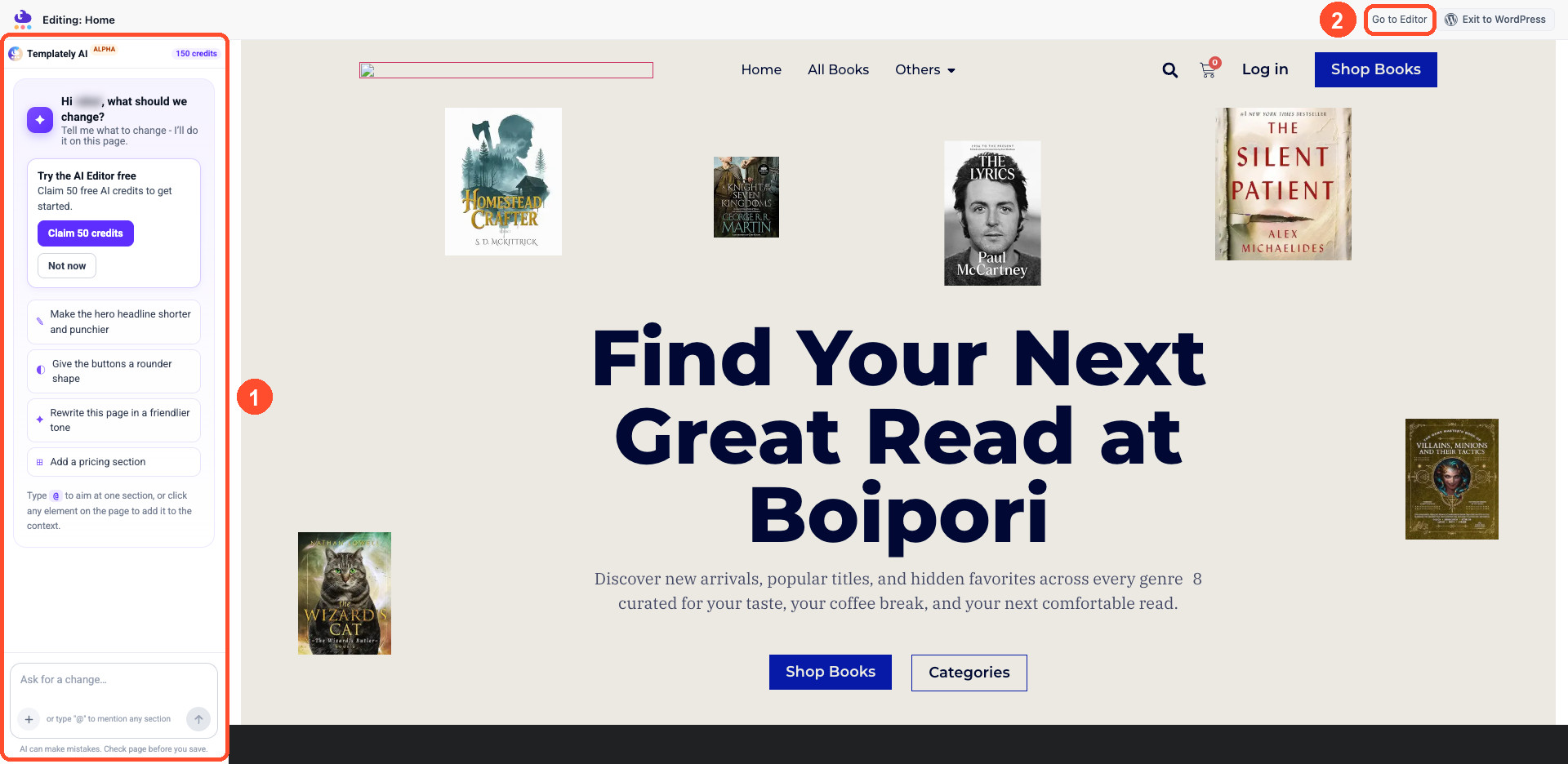
Many agencies and freelancers work with both page builders, depending on the client. Templately AI Editor works the same way in Elementor and in the WordPress block editor, so you do not need to learn two different workflows. You can also open it straight from the WordPress Pages or Posts list, which loads a focused view with only the canvas and the chat panel. Your normal editor still runs underneath, so saving works as usual, and you can switch to the full editor at any time with Go to Editor.
Note that pages built with the Classic Editor are not supported. If your site still uses it for some pages, you will need to use Elementor or the block editor for the pages you want to edit with AI.
Built-In Safety for Site-Wide Changes
Your header and footer appear on every page, so a mistake there affects the whole site. Before Templately AI Editor changes your site header or footer, it asks you to confirm with Yes, apply it site-wide. This extra step makes sure global changes only happen when you mean them to.
Where Templately AI Editor Has Limits
Templately AI Editor handles most everyday edits well, but it does not replace every task in your page builder. Keep these limits in mind before you start:
- Classic Editor pages are not supported. The AI Editor only works on pages and posts built with Elementor or the WordPress block editor.
- Premium plugin sections need manual setup. Free plugins a section needs are installed for you, but if a section relies on a premium plugin such as Essential Addons Pro, you have to install that plugin yourself.
- Pro sections need a Pro plan. On the free plan, Pro designs from the Templately library stay locked behind an upgrade.
- Every request uses AI credits. When your balance reaches zero, the panel stops and does not attempt the edit until you add more credits.
- Image editing is not supported yet. You cannot ask the AI Editor to replace, crop or generate images, so any image changes still need to be made by hand on the canvas.
- Results still need a human check. Vague requests or complex layouts can produce edits that miss the mark, so review each change on the canvas and fix it with a follow-up request or by hand before you save.
Real-World Use Cases of Templately AI Editor
To understand where Templately AI Editor adds the most value, let us look at a few common situations WordPress users face every week.
Freelancers Handling Client Revisions
A client sends a list of feedback: shorten the hero text, change the button color to their brand purple, move the FAQ to the bottom and add a testimonials section. Normally, it takes hours of clicking through settings. With Templately AI Editor, a freelancer can work through the list one request at a time, review each change on the canvas, and save the page once everything looks right.
This also makes live calls with clients easier. You can apply a requested change during the call, show the result, and undo it if the client changes their mind, without leaving the editor.
Store Owners Preparing Seasonal Campaigns
Seasonal sales like Black Friday and Cyber Monday need quick page updates. A WooCommerce store owner can open the homepage and ask, “Rewrite the hero heading to promote our Black Friday sale with discount offers”, then “Make the hero button red”, then “Add a countdown or offer section below the hero.” When the campaign ends, the same approach helps switch the page back to its regular messaging in minutes.
Marketers Testing Copy and Layout
Marketers often want to try a different headline, a shorter call to action, or a new section order to see what converts better. Templately AI Editor lets them create these variations without waiting on a designer. For instance, a marketer can ask, “Rewrite the features section to focus on time saved instead of features”, review the new version, and save it as part of a test.
Bloggers And Content Teams Using Gutenberg
Content teams that publish in the block editor can also use Templately AI Editor on posts. A writer can ask it to tidy up an introduction, change the style of a callout, or add a ready-made pricing or CTA section to a product review post. This keeps posts consistent with your site design without asking a developer for every layout change.
How to Edit WordPress Pages with AI Using Templately AI Editor
Getting started takes only a few minutes. Before you begin, make sure you have Templately installed and that you are signed in to your Templately account. Your page should be built with Elementor or the block editor.
Step 1: Claim Your 50 Free AI Credits
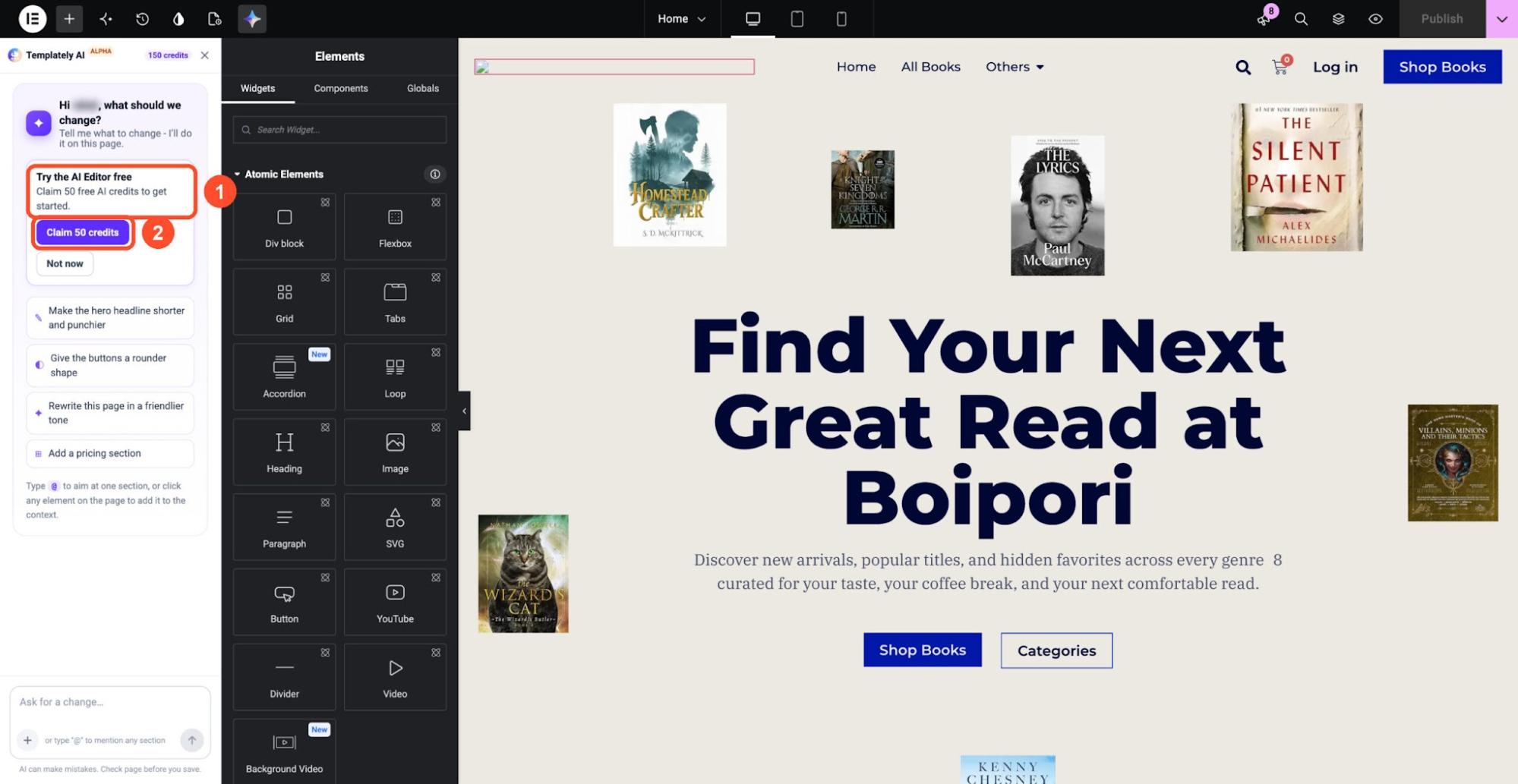
Each request uses Templately AI credits. If you have a verified Templately account and have never used the AI Editor, you can claim 50 free AI credits. Open the AI Editor on any page and click Claim 50 credits on the Try the AI Editor free card, or claim them from the Templately AI Editor page. No card is needed, the credits never expire, and you can use them on any Templately AI feature. To understand how credits work in detail, read Templately AI Credits Explained.
Step 2: Open Templately AI Editor
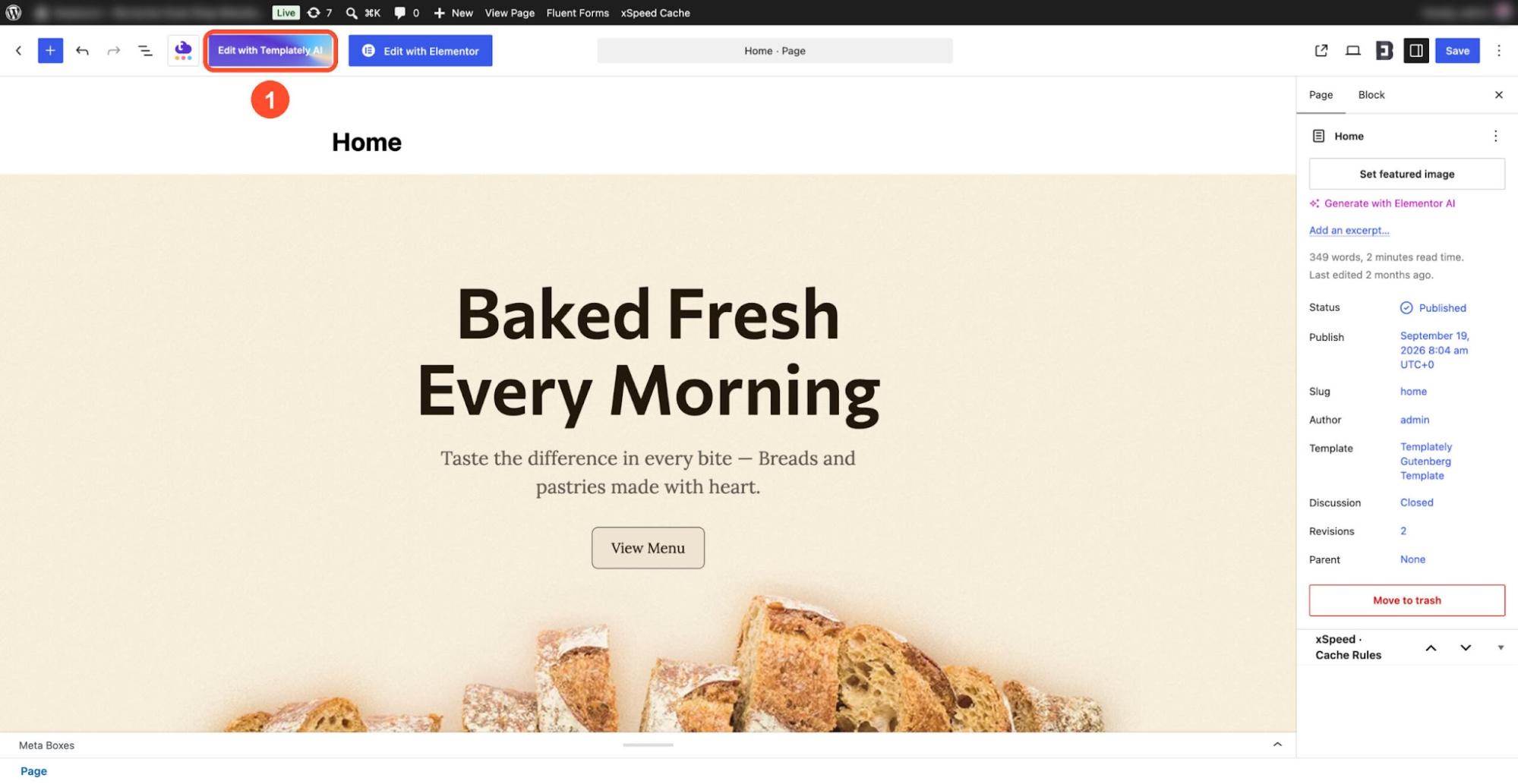
In Elementor, open your page with Edit with Elementor and click the colorful Templately AI icon in the top bar. In the block editor, click Edit with Templately AI in the top bar, next to the Templately menu. You can also go to Pages or Posts, hover over a page and click Edit with Templately AI to open the focused view.
Step 3: Ask for a Change
Type what you want in the Ask for a change… box and press Enter. To target a specific section, type @ and pick it from the list. To target a single element, select it on the page and choose Add to Templately AI context.
Step 4: Review, Undo or Save
Once the edit is done, the panel explains what changed. Ask for another tweak, undo it with Ctrl+Z or ⌘+Z, or click Save page to publish your changes. Nothing changes on your live site until you save.
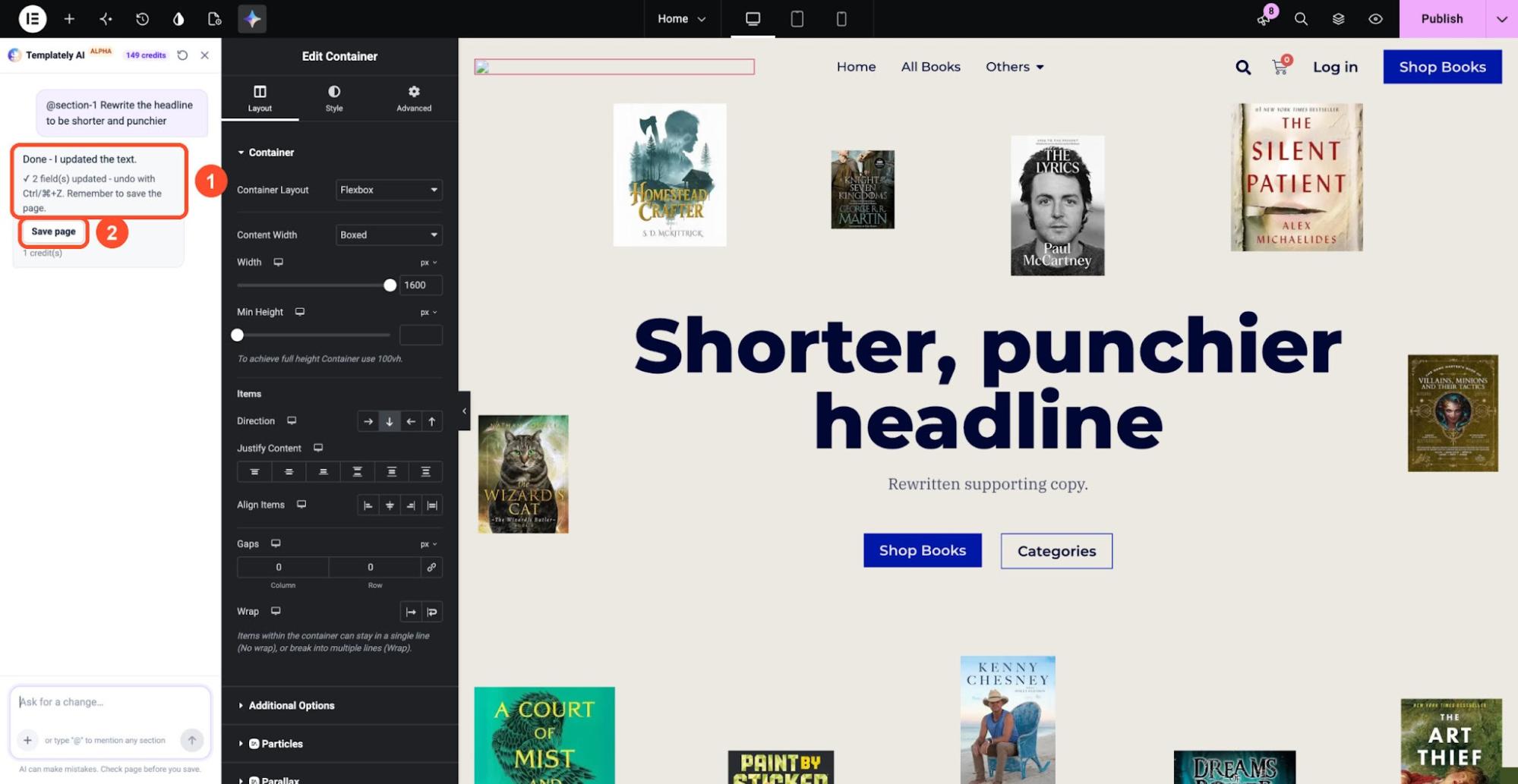
For the full walkthrough with screenshots, check the Templately AI Editor documentation.
Tips to Get Better Results From Templately AI Editor
The quality of the result depends a lot on how you ask. These simple practices will help you get accurate edits and use fewer credits:
- Point at what you mean. Use @ or Add to Templately AI context so the edit lands exactly where you want it.
- Be specific. “Make the button #5632d1 with 12px rounded corners” works better than “make it nicer”.
- Make one change at a time. Short requests are faster, use fewer credits and are easier to check.
- Review before you save. Look over the canvas and undo anything you do not want before saving.
If your credit balance reaches zero, the panel lets you know and does not attempt the edit. You can buy more credits from your Templately account or choose a plan with AI credits. You can also pair the AI Editor with other Templately AI features, like generating website content and replacing images or creating a website logo with AI, to build and refine your site faster.
Start Editing Your Pages Smarter with Templately AI Editor
Templately AI Editor turns page editing into a conversation. Instead of searching through settings panels, you describe the result you want, review it on the canvas and save it when it looks right. Whether you are handling client revisions, updating a store for a seasonal sale or testing new copy, it helps you finish small and medium page edits with far less clicking through settings panels, in both Elementor and Gutenberg.
Update Templately to the latest version, claim your 50 free AI credits and try your first request today. If you need any help, feel free to contact our support team.