
A nonprofit website has one job that a corporate site does not: it has to turn a visitor’s attention into a donation, a volunteer signup or a shared post, usually inside the first thirty seconds. Most small and mid-size nonprofits do not have a developer on staff, so that job falls to whoever is willing to open WordPress and figure it out.
The good news is that you no longer need to build a donation-focused website from a blank page. Ready-made nonprofit website templates let you start from a design that already knows how to ask for a donation, tell an impact story and organize causes, events and volunteers into pages that make sense. In this guide, you will see why a nonprofit needs more than a Facebook page, how a ready template changes the timeline from months to days and a full, step-by-step tutorial for building a donation website with a real Templately template, including Full Site Import and the built-in AI tools.
TL;DR: Quick Summary
- Donation pages convert better when they are built well: desktop donation pages convert at roughly 11% compared with 8% on mobile, per M+R Benchmarks 2025 data, so design and mobile performance both affect how much a nonprofit raises.
- A ready-made template gives your nonprofit a professional, donation-ready structure, home, causes, events and a clear path to give, on day one instead of after weeks of design work.
- Templately is a cloud-based template library for WordPress with thousands of ready templates for both Elementor and Gutenberg, plus MyCloud, WorkSpace and Cloud Collaboration for teams and boards working together.
- Templately’s nonprofit-ready packs, each built for a slightly different kind of cause-driven organization.
- The tutorial below walks through building a donation site with the DoNation template using Templately’s Full Site Import, then customizing it with Templately AI for content, logo, and images.
- A template gives you the design. You will still need a dedicated donation or payment plugin to actually process gifts, and the tips section covers what to add before launch.
Curious which template fits your cause? Skip ahead to the four nonprofit packs below, or keep reading for the full case for a dedicated website.
Why Your Nonprofit Needs a Website Beyond a Social Page
Social platforms are useful for reach, but they are rented land. The algorithm decides who sees your post, the platform can change its rules overnight and a payment link buried in a bio is not where most people expect to donate. A website is the one place your organization fully controls, and it is where a donor, a grant reviewer or a journalist goes to check that you are legitimate before they act.
The numbers back this up. WordPress now powers more than 40% of all websites globally (40.2% as of October 2026, according to W3Techs), and design still does real work in that decision: a visitor who lands on a site that looks unfinished or dated tends to question an organization’s credibility before reading a word of its mission statement.
Online giving keeps shifting toward mobile, though unevenly. Mobile devices account for 52% of nonprofit website traffic but only 43% of donation transactions and 28% of online revenue, since the average mobile gift (88 US dollars in 2025) runs well below the average desktop gift (168 US dollars), according to the M+R Benchmarks 2026 report. A responsive, mobile-first donation page helps close that gap. Recurring monthly giving is growing too, making up 27% of online revenue in 2025, ranging from 22% to 37% depending on an organization’s size, and recurring donors give more per year than one-time donors. None of that is possible without a website built to collect and manage recurring gifts in the first place.
A website also does the quiet work a social feed cannot: it hosts your annual report, your volunteer application, your event calendar and your tax-receipt information in one organized place, available at any hour, in any time zone, without you being online to answer a message. For a broader checklist of what a nonprofit homepage should cover, guides like Nonprofit Tech for Good’s website design best practices are a solid starting point.
Why Templately Works Well for Nonprofit Teams
Building a donation-focused site from scratch means making dozens of decisions before writing a single word: page structure, color palette, typography, where the donate button goes, how causes are organized. A ready template already makes most of those decisions well, tested across hundreds of similar organizations, and gives a small team three things at once: speed, because a full set of pages exists on day one instead of after weeks of back and forth with a designer; consistency, because every page shares the same colors, fonts and spacing automatically; and confidence, because the layout follows patterns other nonprofits have used successfully.
Templately adds three things a generic theme marketplace does not. First, breadth, with thousands of templates and hundreds of full-site Ready Packs for both Elementor and Gutenberg, so a nonprofit is likely to find a template built for a cause-driven organization rather than adapting a generic business theme. Second, an AI layer that can generate full-site copy, a logo and replacement images from a short description of the organization, closing the gap between an imported template and a site that sounds like the real nonprofit behind it. Third, and most useful for a team that is rarely just one person, Templately’s MyCloud, WorkSpace and Cloud Collaboration features let a communications volunteer, a board member and an outside contractor all build on the same saved templates instead of emailing files back and forth.
Templately offers a free plan on WordPress.org, with paid plans unlocking the full template library, more cloud storage and additional collaboration seats, so a nonprofit can start free and grow into a paid plan as it does.
4 Best Nonprofit Website Templates on Templately
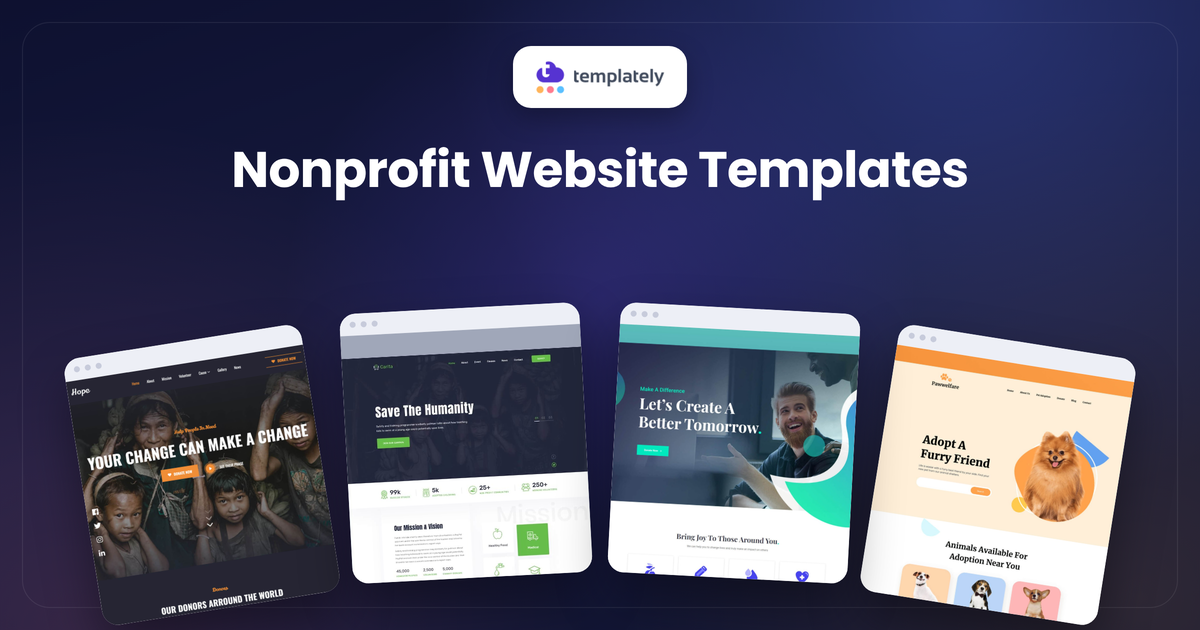
Not every cause-driven organization needs the same homepage. A single-focus charity, a fundraising campaign and a multi-program NGO all ask a website to do slightly different jobs, so Templately’s nonprofit library spans a few distinct packs rather than one generic layout. The four below cover most of what a nonprofit, NGO or animal welfare group is likely to need, from a clean general-purpose starting point to a full, multi-page site.
Compare the four packs at a glance below, then read on for a closer look at which one fits your organization.
Nonprofit Website Templates at a Glance
| Template | Builder | Pages Included | Best For |
|---|---|---|---|
| Hope | Elementor and Gutenberg | Home, about, mission, causes, cause details, gallery, news | General charities and nonprofits that want a clean, donation-first homepage |
| TrustAid | Elementor (with Essential Addons) and Gutenberg | Home plus modular sections for causes, team and testimonials | Fundraising campaigns that need progress bars, counters and donor testimonials |
| DoNation | Elementor | Homepage, events, event details, projects, causes, cause details, news, contact, story | Multi-program nonprofits and NGOs that need a full site, not just a landing page |
| Pawwelfare | Elementor and Gutenberg | Home, adopt a pet, services, donation page and more | Animal welfare groups, shelters and pet adoption services |
Hope: A Clean Starting Point for General Charities
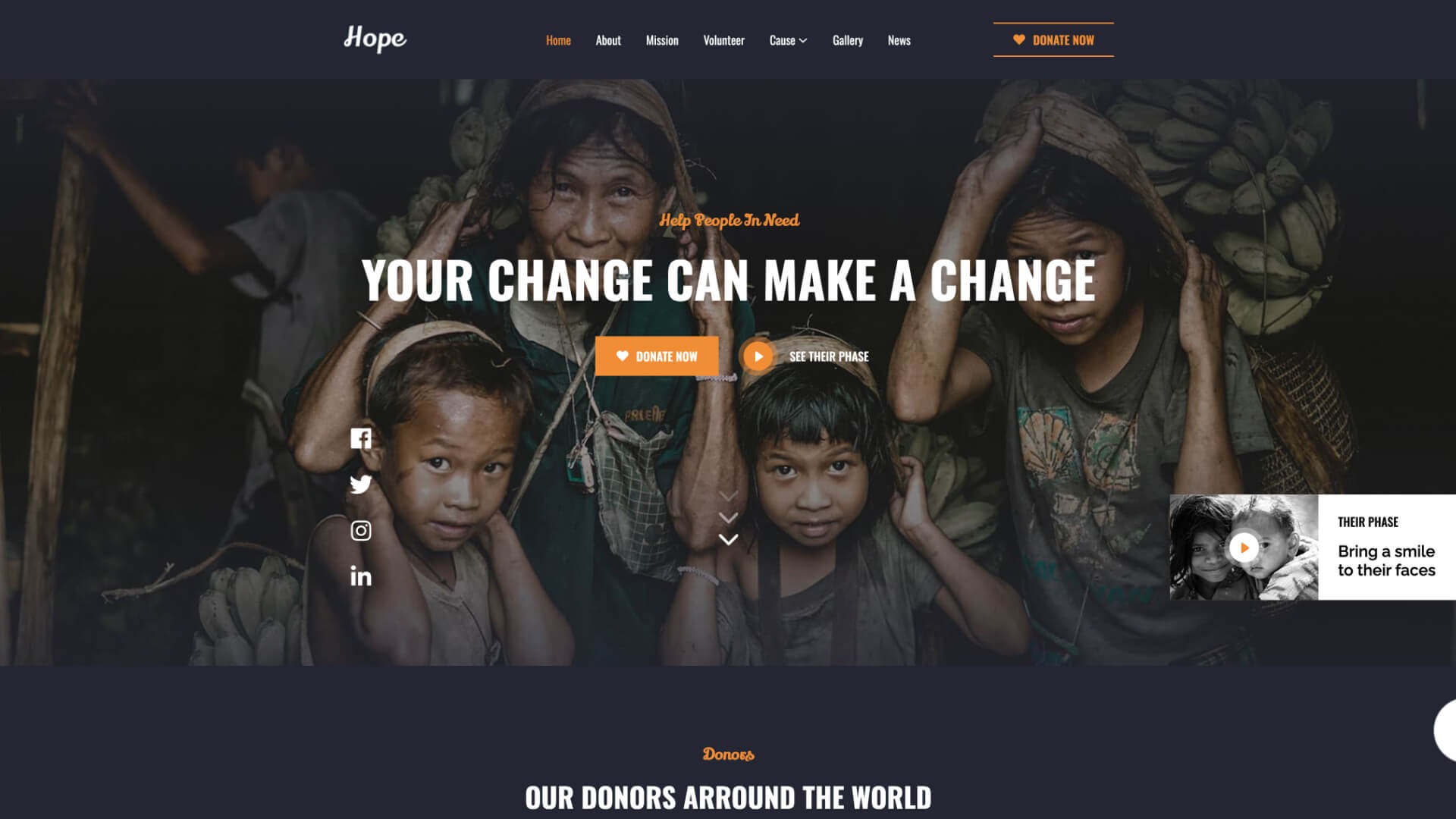
Hope is built for charities and nonprofits that want a straightforward, donation-first homepage without a lot of extra clutter. The pack focuses on the essentials: a homepage that leads with the mission and a donate call to action, an about and mission page to build trust, and causes pages to showcase specific programs, backed by a gallery and news section to show the organization is active.
Hope is available in both Elementor and Gutenberg versions, so a nonprofit is not locked into one builder. It works well for a general-purpose charity, a religious or community organization, or any group that wants to launch a credible site quickly without heavy customization.
Use case: A small, general-cause charity that needs a professional presence fast and does not yet run complex, multi-program fundraising.
TrustAid: Built for Fundraising Campaigns And Donor Trust
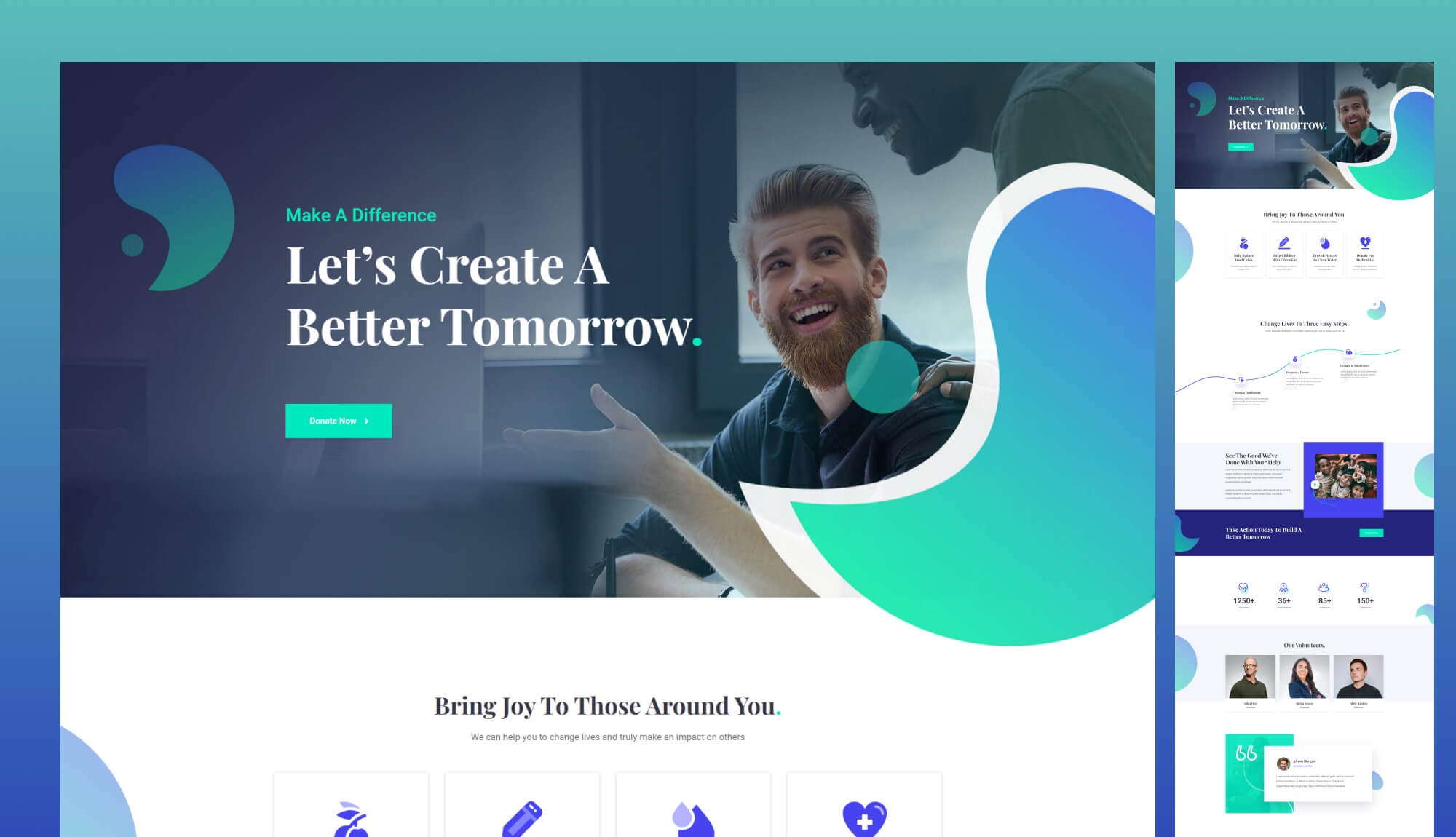
TrustAid leans into the specific widgets a fundraising campaign needs to build trust and show momentum. It includes an interactive post carousel for showcasing initiatives, customizable progress bar widgets for tracking fundraising totals in real time, animated counters for stats like successful events or active volunteers, a testimonial slider for donor reviews, a team member carousel and a logo carousel for partner and sponsor organizations.
The Elementor version is built with Elementor and Essential Addons, and a separate Gutenberg version covers the core pages for teams that prefer the block editor. Either way, it is a strong fit when the goal of the site is less “explain who we are” and more “convince someone to give right now.”
Use case: a fundraising campaign, capital drive or annual appeal that needs visible progress tracking and social proof to push visitors toward donating.
DoNation: A Full-Site Pack for Multi-Program Nonprofits
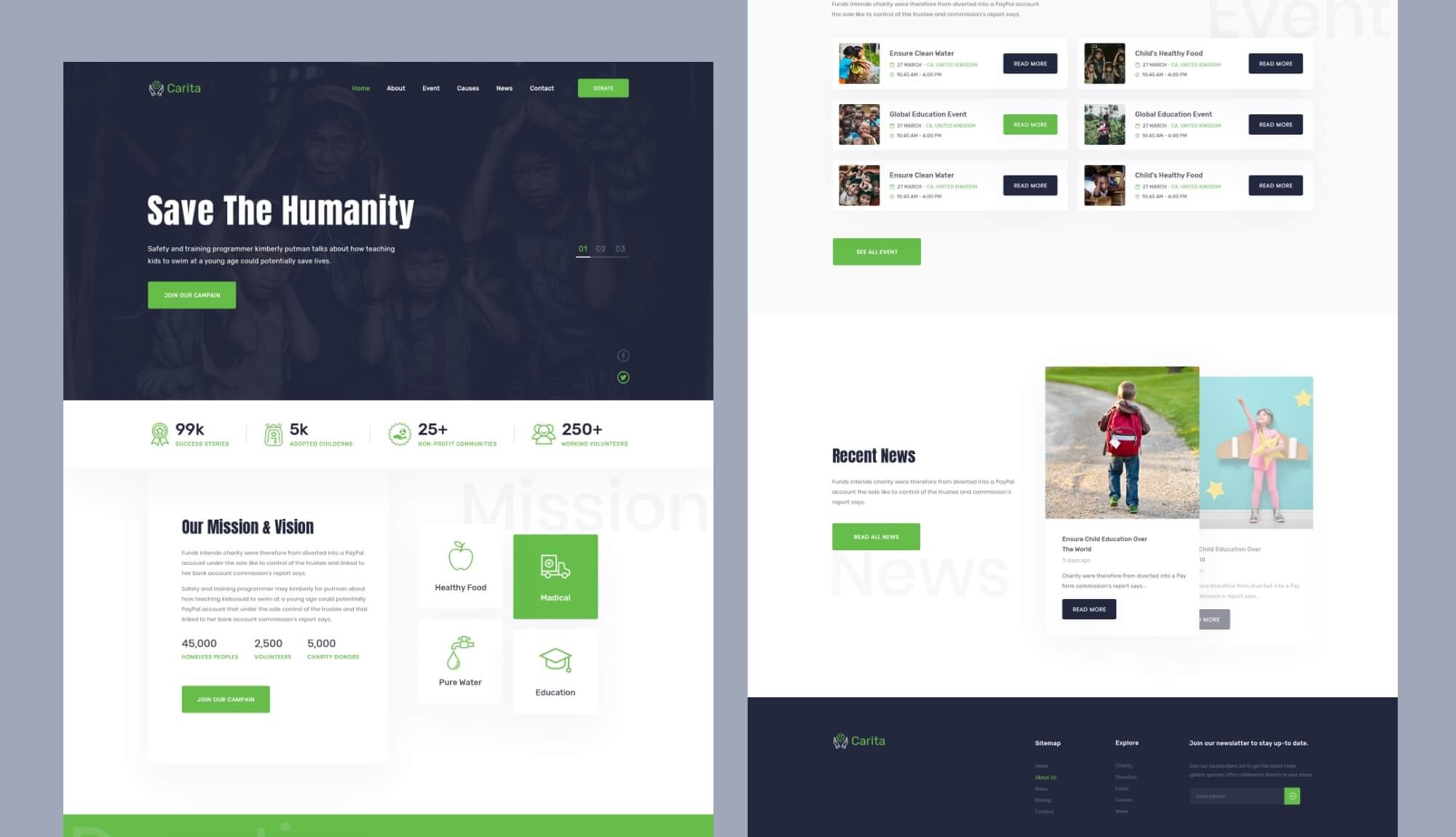
DoNation is the most complete pack of the group, with nine dedicated pages covering a homepage, an events page and event detail page, a projects page, a causes page and causes detail page, a news page, a contact page and a story page.
It is built for Elementor, and since Gutenberg availability can vary pack by pack, check the DoNation pack page directly if the block editor is a requirement. Because it covers events, causes and ongoing projects as separate content types, it suits organizations running more than one program at a time, such as an NGO managing several campaigns in parallel or a foundation supporting environmental, health or education causes side by side.
Use case: a multi-program nonprofit, NGO or foundation that needs a full site rather than a single donation landing page, and the template used in the tutorial below.
Pawwelfare: A Niche Template for Animal Welfare Groups
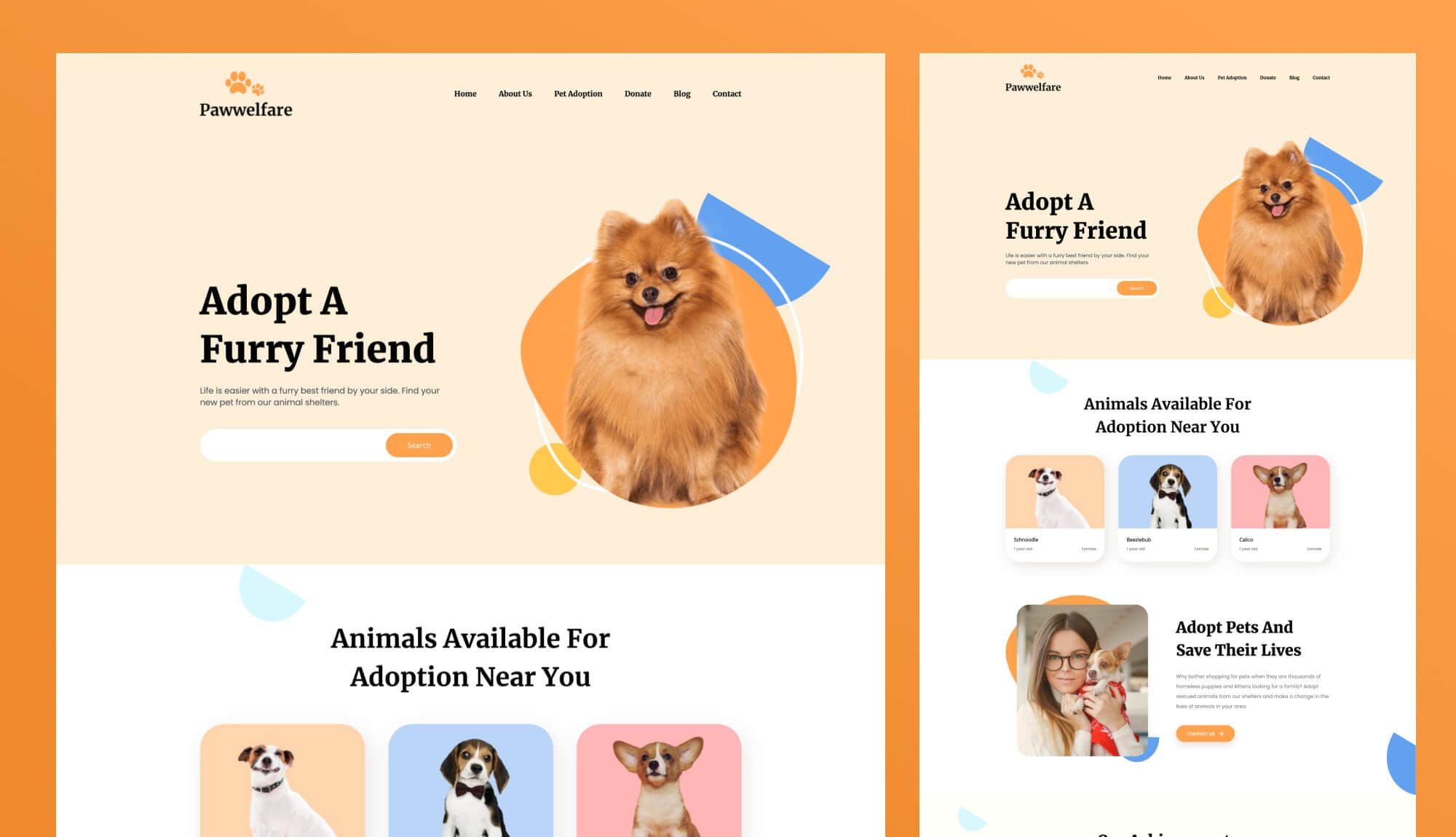
Pawwelfare is a purpose-built option for animal welfare organizations, available in versions for both Elementor and Gutenberg. It includes pages tailored to that specific mission, such as an adopt-a-pet page and a services page, alongside a donation page, so an animal shelter or pet rescue does not have to force its content into a generic charity layout.
Use case: an animal shelter, pet rescue or animal welfare nonprofit that wants a template already structured around adoption and pet-related content rather than a general cause page.
Ready to build one of these packs into a live site? The tutorial below walks through DoNation from import to publish, and the same steps apply to Hope, TrustAid or Pawwelfare.
Step-by-Step Tutorial: Build a Donation Website with DoNation
This walkthrough uses the DoNation pack because it covers the widest range of nonprofit content types in one pack: events, causes, projects, news and a dedicated story page. The same process applies to Hope, TrustAid or Pawwelfare, since every Templately Ready Pack goes through the same import flow.
Before you start, make sure you have the following ready:
- A WordPress site, local or live
- The Templately plugin installed and activated
- A free Templately account
- Elementor installed, if using an Elementor pack
- The WordPress block editor and Essential Blocks ready, if using a Gutenberg pack
Step 1: Install Templately And Its Companion Plugins
From your WordPress dashboard, go to Plugins, then Add New, and search for Templately. Install and activate it. If you plan to use an Elementor-based pack like DoNation’s Elementor version, make sure Elementor is installed as well. Templately will flag any other required plugins later in the process, so you do not need to guess what you need in advance.
Step 2: Create Your Free Templately Account
Open the Templately panel inside WordPress, or visit templately.com directly, and create a free account. This account is what powers MyCloud, WorkSpace and the AI features you will use later, and it is the same login across every site you manage.
Step 3: Find the DoNation Template
Inside the Templately library, search for “DoNation” or browse the charity and nonprofit category. Open the DoNation pack page to preview its nine pages, including the homepage, causes, events and story pages, and confirm it matches your organization’s structure before importing.
Step 4: Start the Full Site Import
Click “Build Full Website” on the DoNation pack. This opens Templately’s Full Site Import wizard, which brings in the entire pack, pages, navigation and internal links together, in one flow instead of importing each page individually. The import is designed to replace the design layer without touching your existing posts, pages or media library, but as with any site-wide change, back up your site or test it on a staging copy first before running it on a live, production site.
Step 5: Set Your Site Title, Typography And Color Scheme
Inside the same import wizard, before you finish the import, you will be prompted to enter your organization’s site title and tagline. From there, use the global typography controls to choose your font family, sizes and weights, and the global color panel to set your primary and secondary brand colors. Because these are global settings, changing them here updates every page in the pack at once instead of requiring you to edit each page separately later.
Step 6: Let Templately AI Generate Your Content, Logo And Images
This is where the AI layer speeds things up considerably. Still inside the same import wizard, Templately AI can generate full-site copy based on a short description of your organization’s mission and programs, so the placeholder text on the causes, about and story pages gets replaced with something close to your real voice instead of generic filler. You can also generate a logo, choosing variations, size and quality, and swap out placeholder images for AI-suggested alternatives that better match your cause.
Good to know: AI actions run on a credit system, with a starter allowance included on the free plan and additional credits available on paid plans. Treat the AI output as a strong first draft to edit, not a finished, publish-ready result.
Step 7: Finish the Import And Install Companion Plugins
Click “Install and Proceed” to complete the Full Site Import you started in Step 4. Templately will automatically install any required companion plugins and demo content for the DoNation pack. If you do not want a particular plugin or the demo content, you can uncheck it before continuing. Once the import finishes, WordPress’s Home Page and Blog Page settings will be updated to match the new site, which you can always change later under Settings, then Reading.
Step 8: Customize the Donation, Causes And Events Pages
With the full site imported, go through the pages that matter most for a donation-focused site. On the causes and causes detail pages, replace the sample programs with your real ones, along with photos and short impact statements. On the events page, add your actual fundraising events, and on the homepage, confirm the primary donate button is visible without scrolling and that it links to wherever your donation flow will live. Edit each page in Elementor or the WordPress block editor exactly as you normally would, since Templately hands off the design to your builder rather than locking it behind its own editor.
Step 9: Connect a Donation Form And Payment Gateway
A template gives your donation page the right look, the counters, the causes, the call to action, but Templately itself does not process payments. Add a dedicated donation or forms plugin that supports your preferred payment processor, connected to a gateway like Stripe or PayPal, and embed that form in the donate section of the homepage, or on a dedicated donate page if your chosen pack includes one. Test the entire flow yourself with a small real or sandbox transaction before you announce the site publicly.
Step 10: Save Your Design to MyCloud And Publish
Once you are happy with the customized pages, save the design to MyCloud so it is backed up to your account and reusable if you ever launch a second site for a sister program or an annual event microsite. If other people on your team need to help finish the site, invite them into a WorkSpace so everyone is working from the same saved templates rather than separate copies. When everything checks out on desktop and mobile, publish the site.
The DoNation site is live. The tips below help turn that launch into a donation page that keeps converting after day one.
Tips And Best Practices for a Donation-Focused Nonprofit Site
1. Put the donate button where no one has to look for it. A donate call to action belongs in the header on every page, not only on a dedicated donate page buried in the menu.
Design for mobile first, not as an afterthought. Mobile devices account for 52% of nonprofit website traffic, but only 43% of donation transactions and 28% of online revenue, according to M+R Benchmarks 2025 data, so a slow or clumsy mobile donation flow costs more than it first appears. Test your donation flow on a small screen before you test it on a desktop.
2. Keep the donation form short. Every extra field is a chance for a donor to abandon the process, and a meaningful share of donors who leave a form do so because it felt too long or too complicated.
Offer a recurring giving option, not just a one-time gift. Recurring donors give considerably more over a year than one-time donors, and monthly giving made up 27% of online nonprofit revenue in 2025, per M+R Benchmarks.
3. Show where the money goes. A lack of transparency about fund allocation is one of the most common reasons donors stop giving, so a simple, honest breakdown of program spending builds more trust than a vague mission paragraph.
4. Lead with impact, not history. A photo, a number and a short story about one person or one program you helped will move a visitor toward donating faster than a long organizational timeline.
Make the donation flow accessible. Use sufficient color contrast on buttons and links, add descriptive alt text to cause and impact photos and confirm every form field has a visible label, so a visitor using a screen reader can donate as easily as anyone else.
Show visible trust signals near the donate button. A registration or EIN number, a secure checkout badge and a linked privacy policy reassure a first-time donor that the organization and the payment process are both legitimate.
Keep an eye on page speed. A donation page that loads slowly on a phone loses donors before the form even appears, so compress images, limit unnecessary plugins and test load time on mobile, not only on a desktop connection.
5. Test the actual donation flow before launch. Click through as a donor would, on both desktop and mobile, and confirm the confirmation email and receipt both work correctly.
If the organization is eligible, apply for Google Ad Grants. Many registered nonprofits qualify for up to 10,000 US dollars a month in free Google Ads, but the program requires a working, policy-compliant donation page and website, so build that foundation first.
For a broader checklist beyond the donation flow itself, see Neon One’s nonprofit website best practices or Nonprofit Tech for Good’s website design guide.
Give Your Mission a Site That Works as Hard as You Do
A nonprofit website does not need a developer, a large budget or months of planning to look professional and raise money effectively. A well-chosen nonprofit website template gives your organization a donation-ready structure on day one, and a platform like Templately adds the pieces that make that structure easy to launch and maintain: a wide library of templates for both Elementor and Gutenberg, Full Site Import to bring an entire pack in at once, AI tools to fill in content and images quickly, and a cloud workflow through MyCloud and WorkSpace that keeps your whole team working from the same design.
Whichever template fits your cause, whether that is Hope for a general charity, TrustAid for a fundraising campaign, DoNation for a multi-program nonprofit, or Pawwelfare for an animal welfare group, the path from here to a live donation page is now measured in hours, not months.
Do you think this article is helpful? If you like this, then subscribe to our blog for more articles. Also, join us on our Facebook community to interact with more people.