
You are about to click “Add to Cart” and the button jumps. You end up clicking something else entirely. That split-second frustration is not a coincidence. It is a measurable problem called Cumulative Layout Shift, and Google is watching it just as closely as your visitors are. If your WordPress site is doing this to people, it is costing you both sales and search rankings.
Google’s own data shows that sites meeting Core Web Vitals thresholds see significantly lower bounce rates than those that do not. For WordPress site owners, CLS is one of the most common Core Web Vitals problems and it often comes directly from how themes and templates are built. If your pages shift, jump, or reflow during loading, this blog is for you. It will guide you through what causes CLS in WordPress, how to diagnose it, and how to fix Cumulative Layout Shift.
TL;DR
Short on time? Here is the complete picture of what CLS is, why it hurts your WordPress site, and how to fix CLS. The table below covers every key point from this guide in one quick scan.
| What is CLS? | Anchors the reader with the core definition instantly |
| Good CLS Score | Gives the benchmark at a glance, no need to read further to find it |
| Top CLS Causes | Let readers quickly check if their site has the same issues |
| Key Fixes | A direct action summary for those who want to skip ahead |
| Diagnostic Tools | Tells readers where to start without hunting through the article |
| Helpful Plugins | Quick plugin reference for non-technical WordPress users |
| Who Should Read This? | Helps readers self-qualify so they know the content is relevant to them |
Cumulative Layout Shift, one of the three Core Web Vitals metrics, is often the hardest one for WordPress sites to pass. Most site owners do not even know it is happening until their rankings start slipping.
What Is Cumulative Layout Shift And Why Does It Matter for WordPress SEO?
Cumulative Layout Shift is one of Google’s three Core Web Vitals metrics. It measures the total amount of unexpected layout movement that happens on a page while it loads. Google scores CLS on a scale from 0 to any positive number. A score under 0.1 is considered good, between 0.1 and 0.25 needs improvement and anything above 0.25 is poor.
Google officially confirmed that Core Web Vitals, including CLS, are ranking signals. A poor CLS score does not just annoy your visitors. It can directly reduce your organic search traffic. For WordPress sites, this is especially important because many popular themes and page builders introduce CLS without site owners realizing it.
Beyond SEO, CLS damages user trust. When page elements jump around, users misclick buttons, lose their reading position and leave your site faster. All of these behaviors increase your bounce rate and reduce conversions.
How to Measure CLS on Your WordPress Site
Before you fix anything, you need to measure your current CLS score accurately. Here are the most reliable tools for WordPress users.
- Google PageSpeed Insights is the fastest starting point. Enter your URL and it will give you both lab data (simulated) and field data (real user data from the Chrome UX Report). Pay attention to the field data because it reflects what actual visitors experience.
- Google Search Console shows CLS data under the Core Web Vitals report. It segments URLs by “Good,” “Needs Improvement,” and “Poor” status based on real-world data. This is the best way to identify which specific pages on your WordPress site have CLS problems.
- Chrome DevTools lets you record a page load and see exactly which elements shift and by how much. Open DevTools, go to the Performance tab and record a reload. You will see a layout shift overlay that highlights the offending elements.
- Lighthouse runs inside Chrome DevTools or as a standalone tool and provides a detailed breakdown of your CLS score, along with specific elements causing the shifts.
Start by identifying your worst-performing pages in Search Console. Then use PageSpeed Insights and DevTools to drill down into the exact elements causing the shifts.
The Most Common Causes of CLS in WordPress Templates
Understanding why CLS happens in WordPress is the fastest path to fixing it. Most CLS problems in WordPress fall into a handful of predictable categories.
1. Images Without Explicit Width And Height Attributes
This is the single most common CLS cause in WordPress. When a browser loads a page, it needs to know how much space to reserve for each image before the image file actually downloads. If your image tags do not include width and height attributes, the browser renders the text first and then reshuffles everything once the image loads.
WordPress 5.5 introduced automatic aspect ratio calculation first for images in the block editor. However, many classic themes, custom templates and older plugins still output images without these attributes. Page builders are especially guilty of this.
2. Ads And Third-Party Embeds Without Reserved Space
Google AdSense, affiliate banners and sidebar ads are notorious CLS offenders. When the ad network script loads after the page content, it pushes everything below it downward. The same problem affects YouTube embeds, Twitter cards, Facebook posts and other third-party iframes that do not have defined dimensions.
3. Web Fonts Causing Flash of Invisible or Unstyled Text
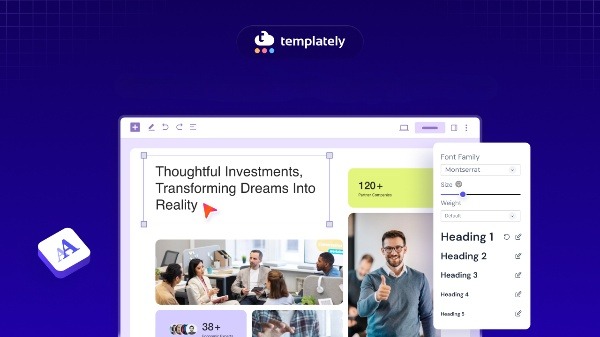
WordPress themes that load Google Fonts or custom web fonts often cause a brief layout shift. When the font loads, text rendered in the fallback font gets replaced with the web font. Because different fonts have different character widths and line heights, the text reflows and causes surrounding elements to shift.
4. Dynamically Injected Content from Plugins
Notification bars, cookie consent banners, sticky headers, pop-up overlays, and chat widgets often load after the initial page render. When they appear, they push the entire page content down. This is a very common problem with WordPress plugins like cookie consent tools, lead generation popups, and live chat widgets.
5. Animations And CSS Transitions That Affect Layout
Certain CSS animations modify properties like top, margin, padding, or height during the load phase. These trigger layout recalculations, which count as a layout shift. This is a frequent issue with theme entrance animations.
6. Lazy Loading Without Dimension Reservation
Lazy loading is good for performance, but when images are lazy-loaded without having explicit dimensions set in the HTML, the layout still shifts when they enter the viewport.
How to Fix Cumulative Layout Shift Issues in WordPress Templates
Now that you know what is causing the shifts, it is time to fix CLS. This section covers six targeted fixes, each addressing a specific CLS source in WordPress. Work through them in order, since the earlier fixes tend to deliver the biggest score improvements the fastest.
Fix 1: Set Explicit Width And Height on All Images
This is the highest-impact fix for most WordPress sites. Every image tag should include both width and height attributes that match the image’s intrinsic dimensions.
In the WordPress block editor, always set image dimensions explicitly in the block settings sidebar. For theme developers and those using classic templates, the fix goes in your template files. A correctly formatted image tag looks like this:
<img src="banner.jpg" width="1200" height="630" alt="Banner image">Modern browsers use these attributes to calculate the aspect ratio and reserve the right amount of space before the image loads. This eliminates layout shift from images.
If you use the the_post_thumbnail() function in your theme templates, pass a specific size string to ensure dimensions are output:
the_post_thumbnail( 'large' );WordPress will automatically include width and height attributes for registered image sizes. For images added through wp_get_attachment_image(), WordPress also adds these attributes automatically in the latest and updated version.
For sites using WooCommerce or other plugins that output images, check whether the plugin templates include explicit dimensions. You may need to override plugin templates in your child theme.
Fix 2: Reserve Space for Ads And Embeds
The standard approach is to wrap your ad unit or embed it in a container with a defined minimum height using CSS. For a standard leaderboard ad (728×90), you would add:
.ad-container {
  min-height: 90px;
  width: 728px;
}

For responsive ads, use the aspect-ratio CSS property:
@media (max-width:767px){
	.ad-container {
     aspect-ratio: 728 / 90;
     width: 100%;
}
}
This reserves the exact space the ad will occupy, so no content shifts when the ad loads.
For YouTube embeds, the modern approach is using the aspect-ratio property:
.video-wrapper {
  aspect-ratio: 16 / 9;
  width: 100%;
}

.video-wrapper iframe {
  width: 100%;
  height: 100%;
}
If you use a WordPress plugin to embed videos, check whether it includes this CSS. Plugins like EmbedPress provide an optimized embedding experience where you do not have to put any extra effort to manage this.
Fix 3: Optimize Web Font Loading to Prevent Layout Shifts
There are two strategies here. The first is to use font-display: swap in your font face declarations. This tells the browser to render text immediately using the fallback font and swap in the web font when it loads. While this prevents invisible text (FOIT), it can still cause a layout shift if the fonts differ in size.
The better approach is to use font-display: optional. This strategy tells the browser to only use the web font if it loads quickly enough. If it does not, the browser uses the fallback font for that page load. This eliminates CLS from fonts almost entirely, though it means the web font might not appear on the first visit.
For Google Fonts in WordPress, add the &display=swap parameter to your Google Fonts URL. Many themes do not include this by default. You can add it to your theme’s functions.php:
function theme_enqueue_fonts() {

    wp_enqueue_style( 'google-fonts', 'https://fonts.googleapis.com/css2?family=Roboto:wght@400;700&display=swap', false );

}

add_action( 'wp_enqueue_scripts', 'theme_enqueue_fonts' );
Another powerful technique is to preload your critical web fonts. Add this to your theme’s <head>:
<link rel="preload" href="/fonts/your-font.woff2" as="font" type="font/woff2" crossorigin>Preloading the font means it starts downloading before the browser even parses the CSS, which dramatically reduces the time window during which a layout shift can occur.
Finally, define a fallback font stack that closely matches your web font’s metrics. Tools like Font Style Matcher and the newer size-adjust, ascent-override, and descent-override CSS descriptors let you tune your fallback font to match the web font dimensions as closely as possible.
Fix 4: Handle Cookie Banners And Dynamic Plugin Content
Cookie consent banners and notification bars are among the most impactful CLS sources on WordPress sites because they affect every single page on the domain.
The right fix is to position these elements so they do not push content. Use position: fixed or position: sticky with bottom: 0 to place cookie banners at the bottom of the viewport without displacing page content. Avoid top-mounted banners that push the page down after load.
.cookie-banner {
  position: fixed;
  bottom: 0;
  left: 0;
  right: 0;
  z-index: 9999;
}
For admin bars (which WordPress shows to logged-in users), make sure your theme accounts for the 32px height the admin bar adds. WordPress adds a body class of admin-bar that you can use to adjust layouts accordingly.
For notification bars and announcement banners that sit at the top of the page, reserve their height in the page layout from the beginning rather than injecting them after load. Setting a fixed min-height on the body or wrapper element before the banner renders is one approach.
Fix 5: Fix Lazy Loading on Images in the Initial Viewport
Images in the viewport when the page first loads should never be lazy-loaded. Lazy loading is designed for images below the fold. When you apply loading=”lazy” to hero images or above-the-fold images, the browser has to wait for them to load before rendering, which can cause shifts.
In WordPress, the loading=”lazy” attribute is added automatically by WordPress to images. You can remove it from the featured image in your template using a filter:
add_filter( 'wp_lazy_loading_enabled', function( $default, $tag_name ) {

    return $tag_name !== 'img';

}, 10, 2 );
A more surgical approach is to remove loading=”lazy” only from specific images, like the hero or the first post thumbnail:
add_filter( 'the_content', function( $content ) {

    $content = preg_replace( '/<img([^>]+?)loading=["\']lazy["\']([^>]*?)>/i', '<img$1$2>', $content, 1 );

    return $content;

} );
Alternatively, add fetchpriority=”high” to your hero image to tell the browser to load it immediately:
<img src="hero.jpg" width="1920" height="800" alt="Hero" fetchpriority="high">Fix 6: Audit Your WordPress Theme And Page Builder for CLS
Many premium WordPress themes and page builders introduce CLS through their own scripts and stylesheets. Run your page through Chrome DevTools Performance recorder and watch for layout shifts during the load timeline. Click on any shift event in the timeline to see exactly which element caused it.
Common offenders in themes include:
- Slider plugins that do not reserve height during initialization
- WooCommerce product galleries that shift when the carousel initializes
- Navigation menus that change height when the hamburger icon loads on mobile
For sliders, always set a fixed height or aspect ratio on the slider container so the height is established before the slider JavaScript runs. Most slider plugins have an option for this in their settings.
WordPress Plugins That Help Reduce Cumulative Layout Shift
Several plugins can help automate or simplify CLS fixes. Below are a few plugins that you can use to reduce CLS.
- WP Rocket and LiteSpeed Cache include options to defer non-critical CSS and JavaScript, which can indirectly reduce CLS by controlling when scripts load and affect the layout.
- The Performance Lab plugin from the WordPress core team includes a module that automatically adds reserved space for iframes and video embeds. It also includes an “Image Prioritizer” module that adds fetchpriority=”high” to the LCP image automatically.
- Autoptimize, with careful configuration, can help manage script loading order to prevent dynamic content from causing shifts.
However, plugins are tools, not complete solutions. They help, but manual auditing of your theme templates is still necessary for a truly low CLS score.
How to Track CLS Improvements And CLS Best Practices for WordPress Theme Developers
After applying fixes, monitor your progress consistently. Google Search Console Core Web Vitals data reflects field data collected over a rolling 28-day window, so improvements will take several weeks to show up there.
For faster feedback, use PageSpeed Insights on specific URLs immediately after making changes. The lab data updates in real time. You can also use the CrUX Dashboard (Chrome User Experience Report dashboard on Looker Studio) for historical tracking across your entire domain.
Set up a spreadsheet to track CLS scores for your key pages before and after each change. This gives you clear evidence of what works and helps you prioritize remaining issues.
If you are building or customizing a WordPress theme, follow these practices from the start to avoid introducing CLS.
- Always output width and height attributes on every image element. Use WordPress functions like wp_get_attachment_image(), which include these automatically. Never use <img src=”<?php echo $image_url; ?>”> without the dimension attributes.
- Define skeleton or placeholder states for any element that loads asynchronously. If a sidebar widget pulls data via AJAX, show a placeholder with the correct dimensions while the data loads.
- Test your theme with Google DevTools on a throttled connection. CLS problems are often invisible on fast connections but clearly visible on 3G or 4G simulations. The Performance tab with CPU throttling enabled is your most honest testing environment.
- Use aspect-ratio CSS on all responsive media containers as a standard pattern, not an afterthought. This is now well supported across all modern browsers.
Your WordPress CLS Fix Checklist
Here is a concise action plan you can work through on your WordPress site:
- Measure your current CLS score in Google PageSpeed Insights and Search Console.
- Add explicit width and height attributes to all images in your templates.
- Wrap ads and embeds in containers with reserved height using min-height or aspect-ratio.
- Add &display=swap to all Google Fonts URLs, or switch to font-display: optional.
- Move cookie banners to position: fixed; bottom: 0 so they do not push content.
- Remove loading=”lazy” from above-the-fold images and add fetchpriority=”high” to your hero image.
- Audit theme sliders and carousels for height reservation during initialization.
- Use performance-optimized plugins like EmbedPress to embed multimedia content like videos, GIFs, images, etc.
- Re-test with PageSpeed Insights and track progress in Search Console over 28 days.
Fixing CLS in WordPress Is Worth Every Effort for Your Core Web Vitals Score
A good CLS score is achievable on almost any WordPress site. The process takes some investigation, but once you understand which elements are causing shifts, the fixes are mostly straightforward CSS and HTML changes. Start with images since that fix alone often brings significant improvement, then work through the rest of the checklist systematically.
Was this blog helpful for you? Let us know in our Facebook Community. For more web design-related tips and tricks, subscribe to our blog.