
You finish a great page once and then you rebuild it again. And again. A hero section for a new client, the same pricing table for a sister brand, the same “Book a Call” footer on every site you touch. That repetition is the real time-waster. If you want to reuse designs across multiple sites, you need more than “copy/paste” and a folder of random files. You need a template cloud for WordPress that keeps your best work ready, organized and easy to drop into any project.
Why Reusing Designs Feels Harder Than It Should?
Most “reuse” workflows start with good intentions. You export a template and name it something like “homepage-final-v3.json.” Then life happens. You build another version for a different campaign, another for a different client and another again because the first one did not look right on mobile.
Suddenly, you have three or four templates for the same page, all with “final” in the name and you honestly cannot remember which one has the real latest fixes. So yeah, you will not remember what is inside.
This is exactly where design consistency across multiple sites starts to crack. If you are trying to reuse designs across multiple sites, this is usually the moment things start to feel messy. When templates live in scattered places like local drives, chat apps and email threads, the same section starts to drift from project to project.
Here is what that “drift” looks like in real life: you reuse the same pricing section on Site A, Site B and Site C. On Site A, you make the button a little rounder. On Site B, you change the spacing because it looked tight on the tablet. On Site C, you swap the font weight so it matches the brand.
None of these changes is wrong. They are normal. But now you do not have one pricing section anymore – you have three slightly different versions floating around. And when you reuse it again later, your brand colors are “almost” the same everywhere, even if not the same.
A simple way to think about it: what you really want is a mini design system. In UX terms, a design system is a set of standards that helps teams manage design at scale using reusable components and patterns. That is the whole point – reusing without redundancy and consistency without constant polishing.
Now, here is the twist. You do not need a giant enterprise design system to get the benefits. You just need a lightweight library of your most used layouts – saved in a place you can trust.
When you try to reuse designs across multiple sites without that “trusted place,” these problems show up fast: you rebuild the same sections because you cannot find the latest version; you lose spacing, fonts or global styles during import/export. Plus, you can not confidently share components with teammates, so everyone recreates things their own way, which results in design inconsistency across the website.
How Can a Template Cloud Be a Solution Here?

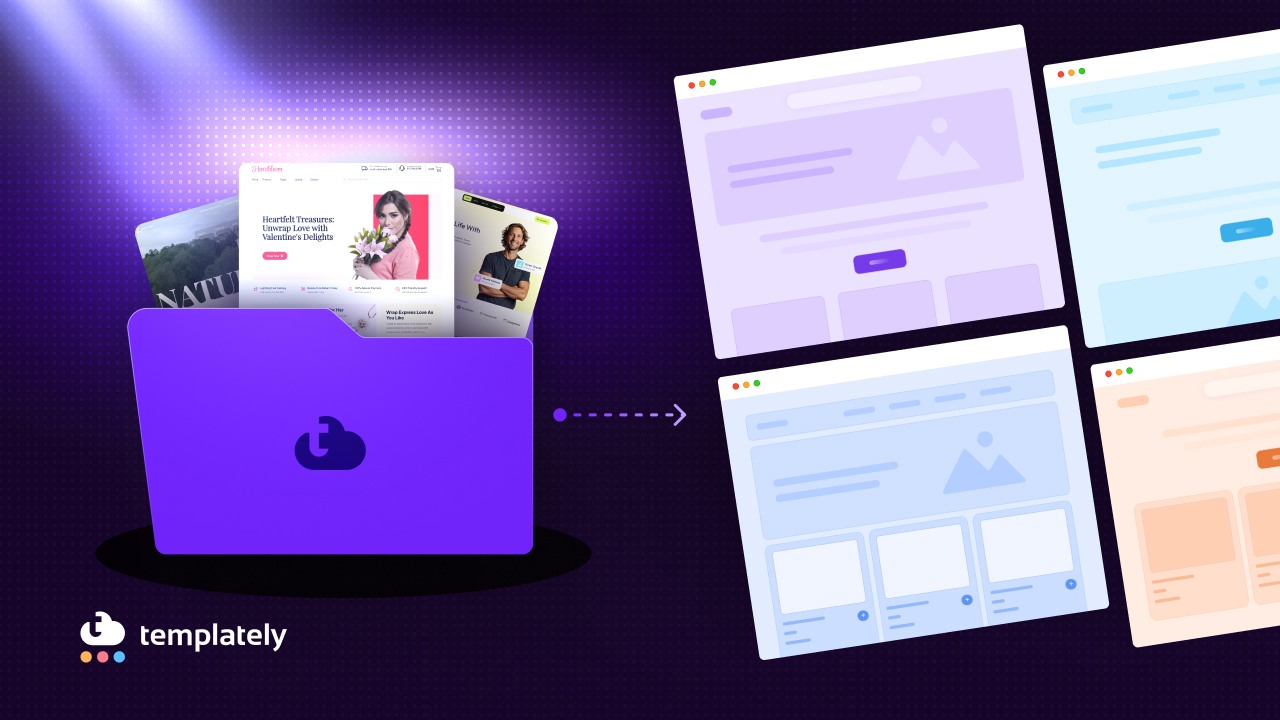
A template cloud for WordPress is exactly what it sounds like: a cloud-based home for your templates, so you can store them once and use them anywhere. No more digging through downloads. No more “Which file was the latest?” moments. Just one clean place where your saved sections, pages and layouts live ready when you need them.
And yes, this is one of the simplest ways to reuse designs across multiple sites without turning every new project into a rebuild. Instead of passing files around, you build a repeatable system. Calm, organized, reliable.
Here is what a cloud template library actually helps you do day to day:
- Find the right design fast (no guessing, no hunting): Your templates do not sit in random folders or Slack messages. They live in one cloud template library, so you always know where to look.
- Reuse faster, without “version anxiety”: When you reuse WordPress designs across multiple sites, the biggest hidden time sink is second-guessing. A template cloud makes reuse feel normal because your saved designs stay accessible and organized.
- Protect design consistency across multiple sites: You can insert the same section with the same spacing, typography and layout structure – so your design consistency across multiple sites does not slowly drift with every new build.
- Make collaboration easier with a shared system: If you work with even one teammate, you will feel the difference. A shared template library for teams turns “I’ll send you the file” into “Use the approved template from the library.” Less back-and-forth. Fewer mistakes.
- Scale your workflow as your projects grow: Whether you are managing client sites, product sites or even planning for WordPress multisite templates, having a cloud-based library gives you a clean foundation to reuse and manage designs without chaos.
That is the mindset shift. And it is exactly why tools like Templately My Cloud (your personal cloud storage) and Workspace (a shared space for collaboration) fit so naturally into this workflow.
How to Reuse Designs Across Multiple Sites with Templately Cloud?
Before we dive into how the template cloud actually works, let us ground this in a real-world goal: you want a repeatable workflow – something you can teach a teammate, something you can rely on when you are tired, busy or juggling three client deadlines at once.
Because the real problem is not “saving a template.” It is knowing where it lives, which version is correct and how to pull it into another site without turning the process into a messy game of searching, downloading, uploading and guessing.
Templately is built to solve this problem. It is an AI-powered Elementor and Gutenberg template library with cloud features, including My Cloud storage to save templates and access them from any device.
Here is the simple system we use to reuse designs across multiple sites while keeping things clean and scalable. And yes – having a template cloud for WordPress is the part that keeps this whole setup calm and predictable.
Saving Your Blocks or Sections to My Cloud
In Templately, you can save a full page, a section or even a small design block to MyCloud so it stays available whenever you need it. The flow is simple: right-click the section you want to reuse, choose the Save in Templately option, give it a clear name and hit Save & Push. That is it. Your design is now stored in your cloud template library, ready to reuse on another site.
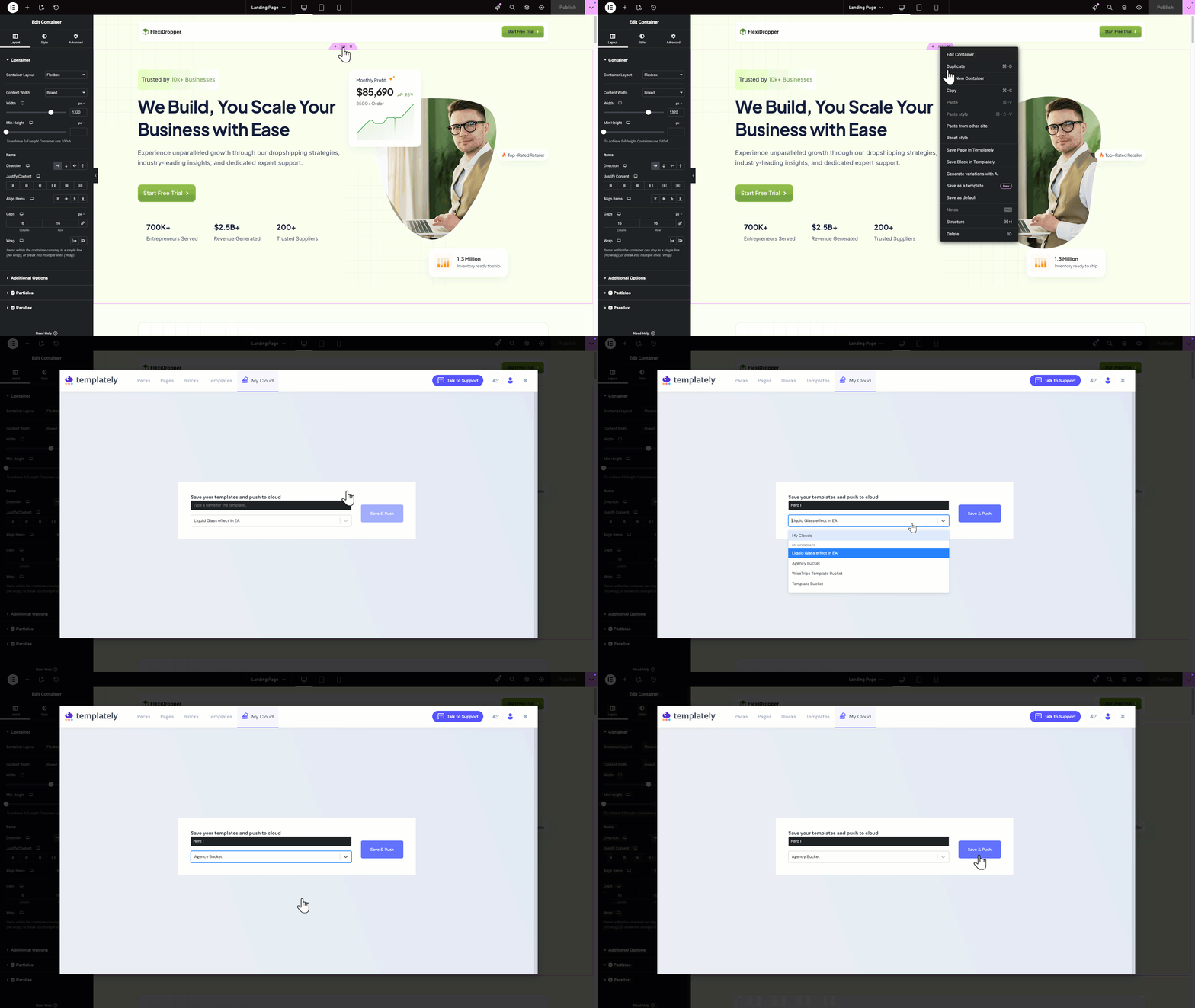
This is the step where your personal cloud template library begins to form. Think reusable hero sections, testimonial rows, FAQ blocks, pricing tables, headers, footers – basically anything you do not want to rebuild for the 5th time.
If you want the full step-by-step with screenshots and exact menu labels, you can check the My Cloud documentation for the detailed process.
Shared Template Library for Teams
If you work in an agency, you will feel this instantly. Templately Workspace is designed as a shared cloud space: you create a Workspace, invite teammates by email and store templates there so everyone on the team can access them.
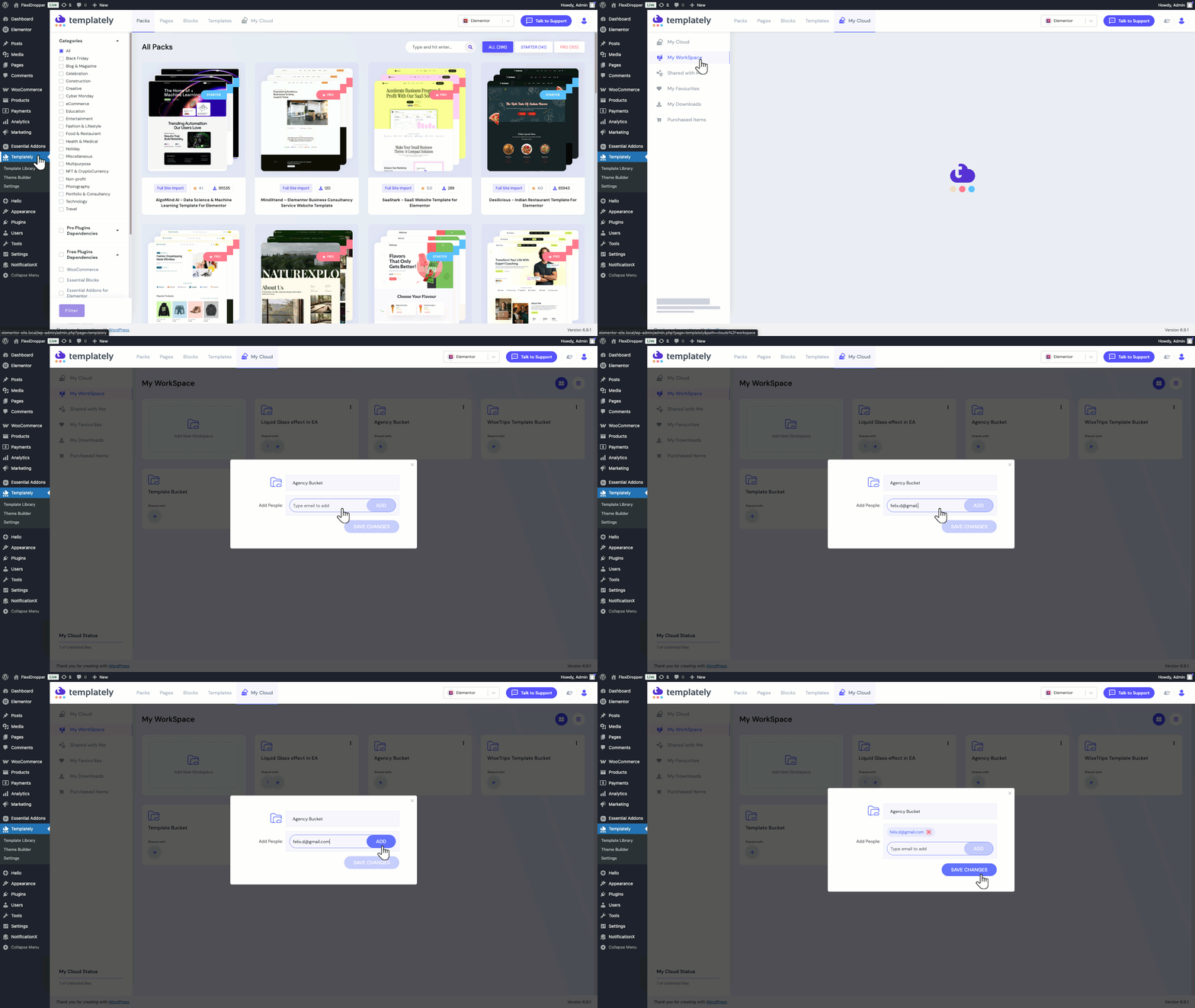
The magic is that you are not just “sharing files.” You are sharing approved design pieces. That is how you reuse WordPress designs across multiple sites without every project drifting into its own style universe.
Inserting Templates into Any New Site Instantly
When you are building a page and want to pull a saved layout, Templately lets you insert templates directly inside Elementor through its icon and template view, then edit the content for the new project.
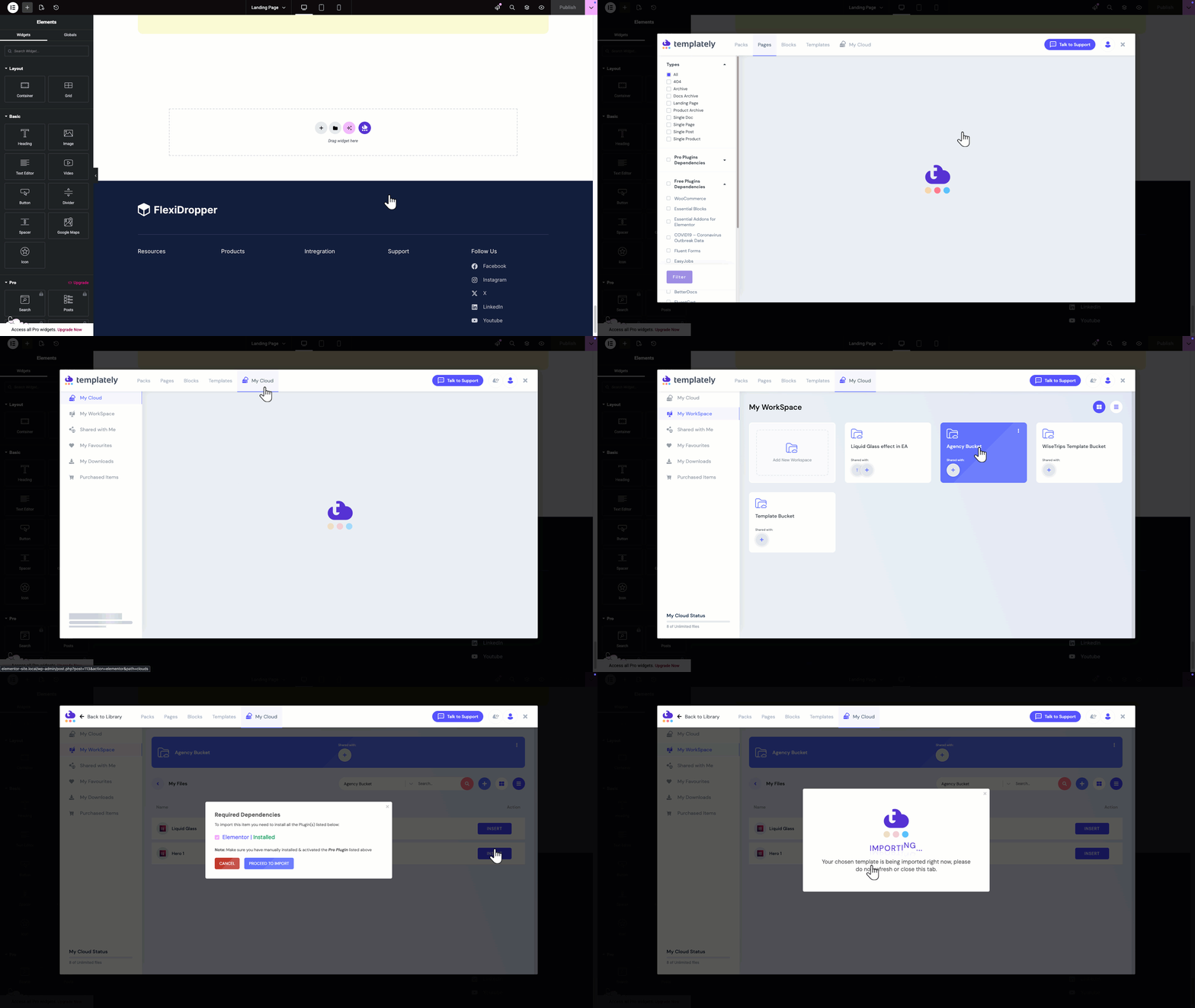
This is the moment where “store once” becomes “deploy anywhere.” And it is the core reason this cloud-based approach feels so different from exporting templates to your desktop.
Options to Copy an Elementor Page to Another Site
Let us zoom in on a very specific task: you want to copy an Elementor page to another site, not just copy the text. You want the whole layout, the spacing and the vibe. You have a few options, and each one works in different situations. The key is knowing what you are trading: speed, portability or consistency.
Quick Transfers Inside Elementor
Elementor supports copying elements and then using “Paste from other site.” The official steps are simple: right-click an element, copy it, then right-click where you want it and choose the paste-from-other-site option.
This can be a lifesaver when you are moving a section between two sites and you want the fastest path. But here is the catch: element-level copying is not the same as a reusable library. It is a moment, not a system. If your team keeps saying “copy Elementor page to another site” every week, you are begging for inconsistent versions.
Where Cloud Storage Makes It Feel Effortless
Even with export/import tools, there is still a lot of overhead: naming files, organizing folders and making sure everyone uses the right version. This is why we keep coming back to the cloud template library approach.
When your reusable layouts sit inside Templately My Cloud, you are not hunting for a file. You are just inserting an approved template and moving on. So if your core need is to move the same page layout across sites as a repeatable workflow (not a one-time trick), a template cloud is the cleaner long-term move.
Tips to Keep Design Consistency Across Multiple Sites as Your Library Grows
This is the part nobody talks about at the beginning. You get excited. You save a few templates. You reuse designs across multiple sites. Life seems good. But, without a plan, your template library turns into a junk drawer. And that is when consistency starts slipping again, just in a different way.
Here are a few simple tips that keep your system healthy:
- Name templates like a human: Use names that explain where the template belongs and what it does. “Brand A – Pricing Table – Dark” beats “pricing-final-2.”
- Tags and folders matter more than you think: Elementor’s cloud template concept leans heavily on organization features like folders and managing a growing collection. Even if your tools are different, the idea is the same: a library works only when you can browse it quickly.
- Create a “core kit” that you refuse to rebuild: Pick 10–20 sections you use everywhere. Your header, your footer, your hero, your CTA strip, your FAQ block, etc. Make those the heart of your shared library. This is basically design-systems thinking – reusable components and patterns that reduce redundancy and keep a shared visual language.
- Use global styles when you can: Templately’s global style settings are designed to centralize typography, colors and spacing so you can keep pages on-brand more easily across a site. If you are trying to reuse WordPress designs across multiple sites for the same brand family, consistent global styles save you from a thousand tiny fixes.
Do not forget the native WordPress side of “reuse.” If you are using the block editor, WordPress has synced patterns (formerly reusable blocks). The idea is powerful: edit the synced pattern once and it updates everywhere it is used.
That is another path to consistency, especially when your “multiple sites” are really multiple pages or templates inside the same site. The point is not to pick one method forever. It is to choose the method that matches your workflow and keeps you sane.
Where WordPress Multisite Templates Fit into the Picture
Now let us talk about a setup that comes up a lot for educational institutions, franchises and multi-location brands: WordPress multisite. WordPress Multisite is a built-in feature that lets you manage multiple sites from one WordPress installation. In many cases, those sites share resources like themes or plugins while having different content for regions or sub-brands.
This is where people start searching for WordPress multisite templates. They want a repeatable structure across the network, without rebuilding the same layout again and again.
Here is the helpful mental model: multisite is great for central management, but you still need a practical way to reuse designs across multiple sites inside that network. Otherwise, you end up with a “same brand, different look” problem that gets worse over time.
What multisite helps with is central control: one WordPress install can keep themes, plugins and key settings aligned across the network. It is cleaner to manage and easier to maintain. But when it comes to layout reuse – your hero sections, pricing blocks, CTA rows – multisite alone does not automatically give you a shared design system.
What You Still Need for Design Reuse
You still need a library. A cloud template library or a set of shared patterns, depending on how you build. For block-editor users, synced patterns can help standardize reusable chunks of layout.
For Elementor-focused teams, building a shared template library through a template cloud can be a smoother path – because you are saving and inserting the same approved designs across sites, not passing template files around.
So yes, WordPress multisite templates are part of the story. But the real win comes when you pair the network structure with a working design library, something your whole team can actually use.
A Clean, Repeatable Checklist Before Your Next Launch
At this point, you do not just know how to reuse designs across multiple sites. You have a system and systems are what make creativity sustainable. Before you publish your next site, run through this quick checklist (it takes five minutes and it saves hours):
- Save your best sections to My Cloud so your library stays current.
- Keep a small “core kit” for design consistency across multiple sites.
- When you need to copy an Elementor page to another site, choose the method that matches the job: quick copy/paste, Elementor template library export/import, or your template cloud for repeatable reuse.
- Use a shared template library for teams so everyone ships the same approved sections.
- If you are managing a network, map out how WordPress multisite templates will be handled (patterns, templates, or cloud).
- Do a fast “style sweep” (fonts, colors, spacing) before launch, using global controls where possible.
Reuse Designs Across Multiple Sites & Build a Steady Workflow
Every time you reuse designs across multiple sites, your library gets smarter. Your team gets faster. Your quality gets more consistent. So the next project feels lighter, not heavier. If you build with a template cloud for WordPress and treat it like a living, shared toolkit, you can reuse designs across multiple sites without losing your creativity or your weekends.
If you have found this blog helpful, share your opinion with our Facebook community. You can subscribe to our blogs for valuable tutorials, guides, knowledge, tips and the latest updates.